
How to Schedule Messages on WhatsApp: Complete Guide for 2026
Learn how to schedule messages on WhatsApp step by step. Covers native options, their limits, and how to schedule WhatsApp messages in bulk using a free browser-based tool.

Kartik Patel
Head of Delivery
Contents
Contact us
Overview: WhatsApp does not have a native message scheduling feature in its standard or Business app. Scheduling on WhatsApp requires either a third-party tool or Android workarounds that are unreliable at scale. This guide covers every available method to schedule messages on WhatsApp, how each one works, where each one breaks, and the step-by-step process for scheduling bulk WhatsApp messages to hundreds of contacts using a free browser-based tool.
Most businesses discover WhatsApp's scheduling gap the hard way. A campaign is ready, the message is written, and there is no native option to set a send time. The standard app has no scheduler. The WhatsApp Business App has no scheduler. The workarounds available on Android are single-message solutions that do not scale beyond one contact at a time. For anyone using WhatsApp as a business communication channel, a WhatsApp bulk message sender free tool with scheduling built in is the only path that actually solves the problem. This guide explains every option — including what each method can and cannot do — so you can choose the right approach for your use case.
No. As of 2026, WhatsApp does not offer message scheduling in the standard app or the WhatsApp Business App. There is no built-in option to write a message, set a date and time, and have it send automatically.
The WhatsApp Business App does offer "Away Messages" and "Greeting Messages" — automated responses triggered by specific conditions. These are reactive auto-replies, not scheduled outbound sends. To schedule messages on WhatsApp, you need either an Android workaround using a third-party automation app, or a browser-based tool with campaign scheduling built in.
Scheduling a single message to one contact is a different problem from scheduling a bulk message to 500 contacts. The right method depends on which one you are actually trying to solve.
Each method works within specific constraints. Understanding those constraints before choosing a method saves significant time.
Method 1: WhatsApp Business App (Away and Greeting Messages)
The Business App's automated messages are condition-triggered auto-replies, not schedulers. An away message fires when someone contacts you outside your set business hours. A greeting message fires when someone contacts you for the first time. These are useful for managing inbound enquiries but are not useful for proactive outreach, campaign sends, or appointment reminders.
Method 2: Android Third-Party Apps (SKEDit and Similar)
Apps like SKEDit integrate with WhatsApp on Android to schedule single messages to individual contacts or groups. The limitations become relevant quickly for business use:
- One message, one recipient per scheduled send — no bulk scheduling
- Device must be on and connected at the send time
- WhatsApp may block or restrict automation from third-party apps
- No contact import, no templates, no tracking
- Android only — not available on iOS or desktop
For scheduling a single reminder to one contact, this is a workable solution. For scheduling a campaign to hundreds of contacts, it is not.
Method 3: Browser-Based Campaign Scheduling (Roklo)
Roklo's campaign scheduling lets you write a message, select a contact group, set a send date and time, and have the campaign deliver automatically to all selected contacts — with personalisation, from your browser. No device needs to stay on at the send time. No Android dependency. No contact-by-contact scheduling.
- Schedule to individual contacts or entire groups in one campaign
- Choose exact date and time for delivery
- Message personalisation with {{name}} variable
- Works from any browser on any device
- Delivery tracking via Message Activity
- Free to use
| WhatsApp App (native) | WhatsApp Business App | Roklo | |
| Schedule messages | No | No | Yes |
| Schedule to multiple contacts at once | No | No | Yes |
| Choose specific date and time | No | No | Yes |
| Message personalisation | No | No | Yes (name variable) |
| Recipient limit per send | 256 (broadcast) | 256 (broadcast) | No fixed cap |
| Delivery tracking | No | Limited | Yes |
| Cost | Free | Free | Free |
In short: For one message to one contact: a third-party Android app works. For scheduled bulk sends to a list: a browser-based tool is the only option that scales.
The steps below cover scheduling a WhatsApp campaign using Roklo. For context on how bulk sending works alongside scheduling, see our guide on how to send bulk WhatsApp messages.
Step 1: Connect Your WhatsApp Account
Open Roklo in your browser at app.roklo.ai. On first use, click "Sync your WA" in the bottom-left corner. A QR code appears on screen. Open WhatsApp on your phone, go to Settings, and tap "Linked Devices." Scan the QR code. Your WhatsApp session is connected in under a minute.
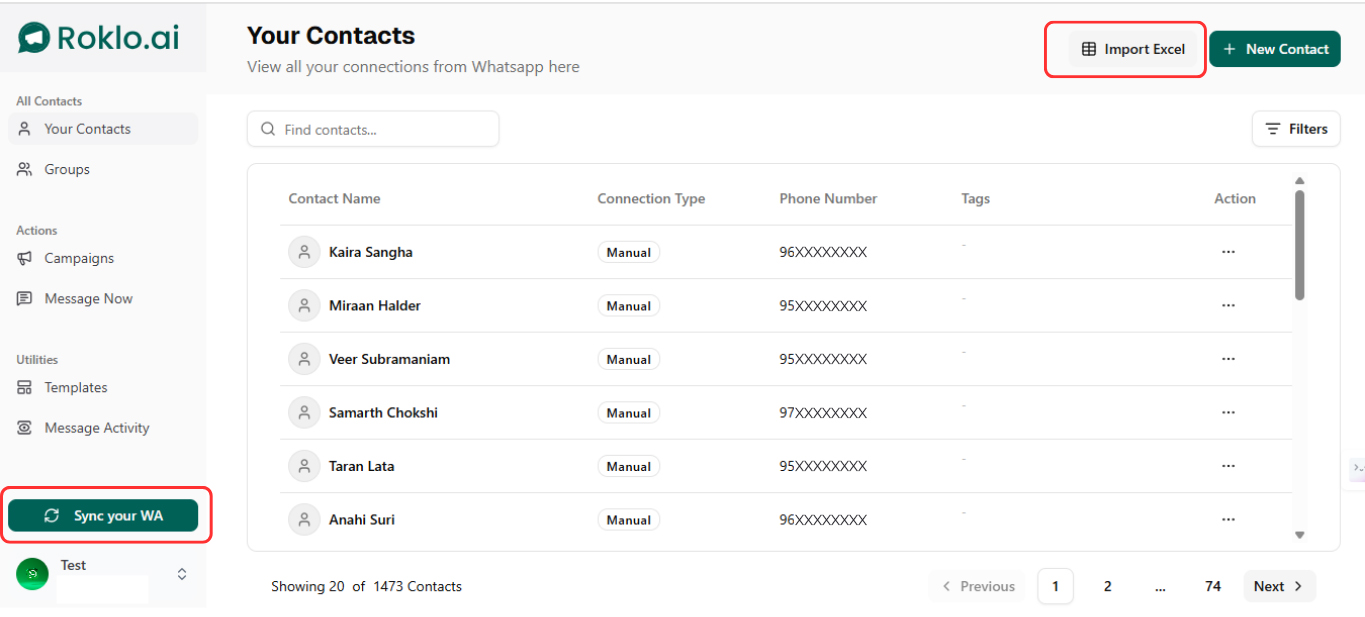
Contacts dashboard — click "Sync your WA" to connect your WhatsApp account and import contacts
You do not need to keep your phone active after this point. The session runs through your browser. Your contacts load automatically after syncing.
One-time setup
The QR scan is required once per session. If you close the browser and return later, you will scan again. This is standard WhatsApp Web behaviour.
Step 2: Import and Organise Your Contacts
Your synced WhatsApp contacts appear in the Contacts dashboard automatically. To add contacts not already in your WhatsApp, use "Import Excel" in the top-right corner. Once contacts are imported, navigate to Groups and click "+ Create Group" to create the audience for your scheduled campaign.
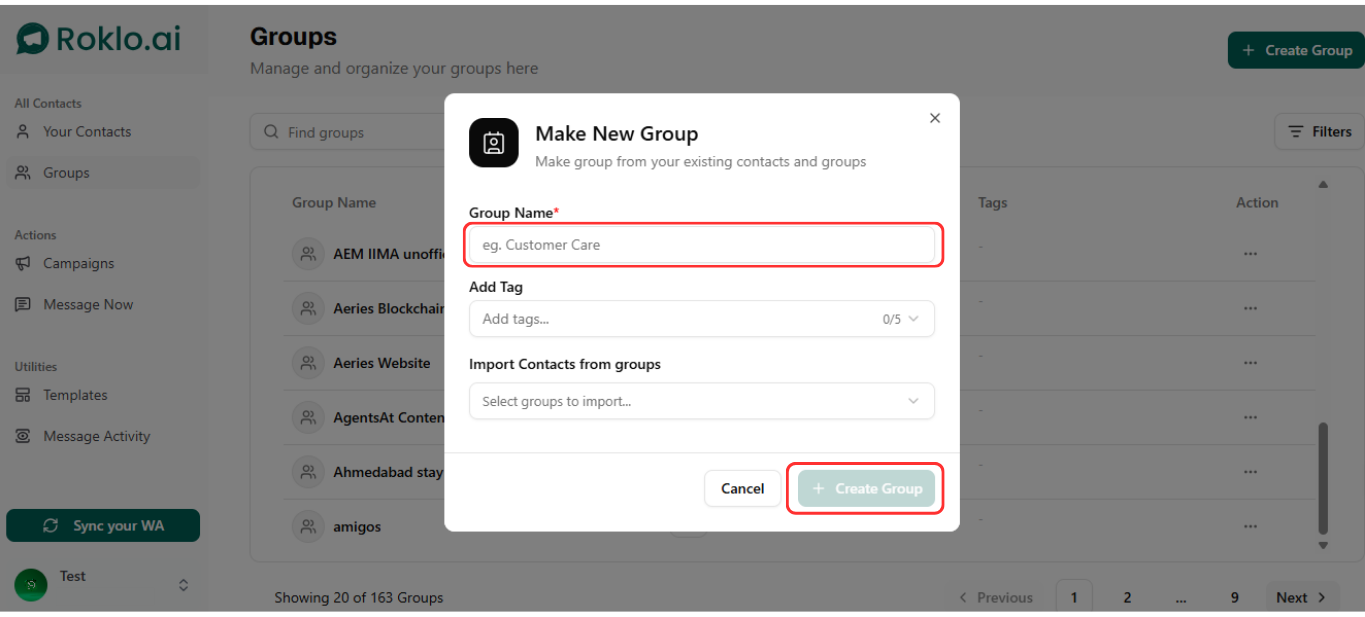
Make New Group modal — name your group and organise contacts into a targeted send list
Group by relevance: clients by product, leads by stage, patients by appointment type. A scheduled message to a relevant, targeted group performs significantly better than the same message sent to your entire list.
Step 3: Create Your Message Template
Go to Templates in the left sidebar and create a new template. Name the template and write your message in the Compose Message section. The live preview shows exactly how the message will appear in WhatsApp before you save it.
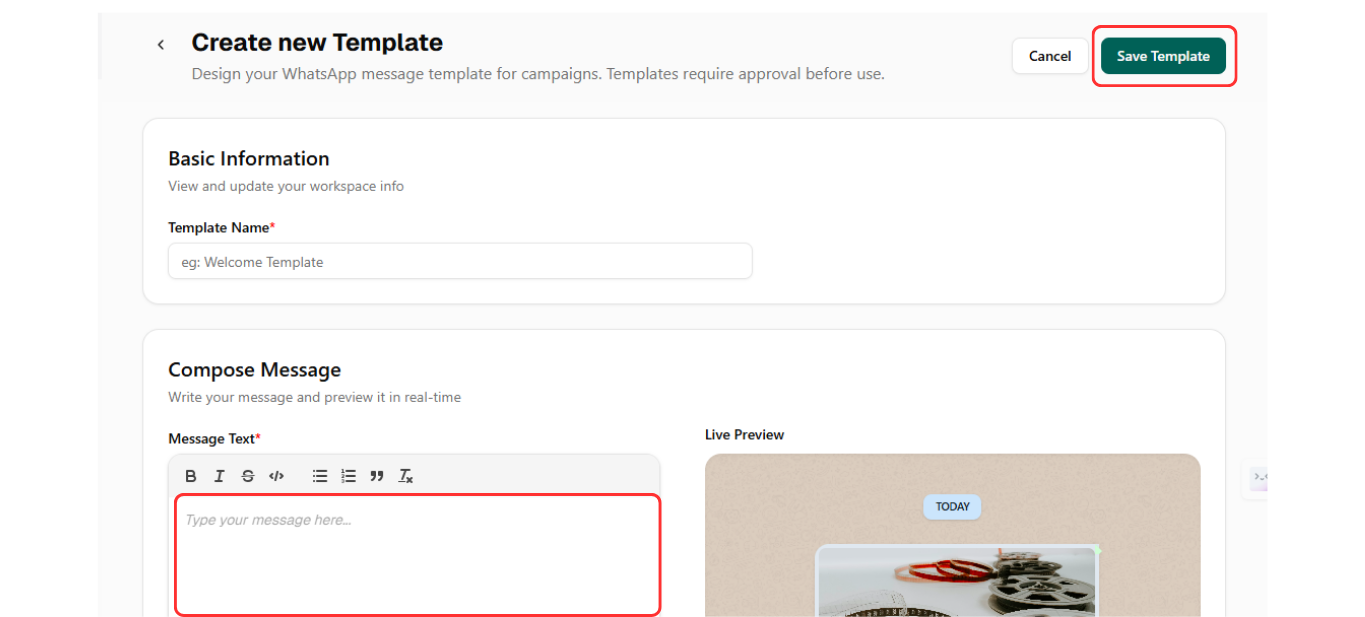
Create new Template — write your message, use the {{name}} variable, and save it for your campaign
Use the {{name}} variable at the opening of the message. A scheduled campaign that opens with the recipient's name reads less like a broadcast and more like a direct message.
Avoid time-specific language in the message body unless you are certain of the recipient's time zone
Writing "Good morning" in a message scheduled for 10am IST delivers at different local times for contacts in different zones. Keep message language time-neutral unless your entire list is in one time zone.
Step 4: Create a Campaign
Click Campaigns in the left sidebar. Click "+ New Campaign" in the top-right corner to begin. If this is your first campaign, you will see the empty state with a "Create Campaign" button — either works.
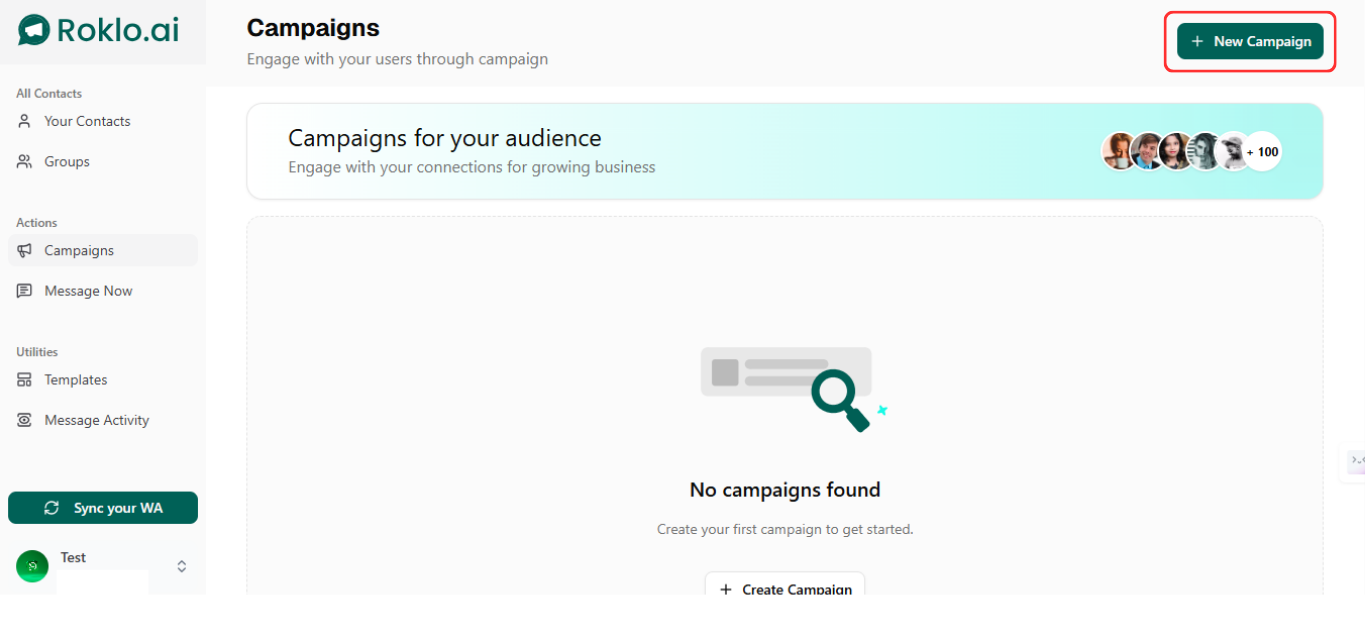
Campaigns dashboard — click "+ New Campaign" to start building your scheduled campaign
The campaign creation flow has three steps: Campaign Details, Target Audience, and Schedule.
Step 5: Select Your Audience
In Step 1 of the campaign flow, name the campaign and select your message template. In Step 2, choose your target audience. Select "Select Groups" to send to an entire group — this is the recommended path for scheduled bulk sends. The group you created in Step 2 appears in the dropdown.
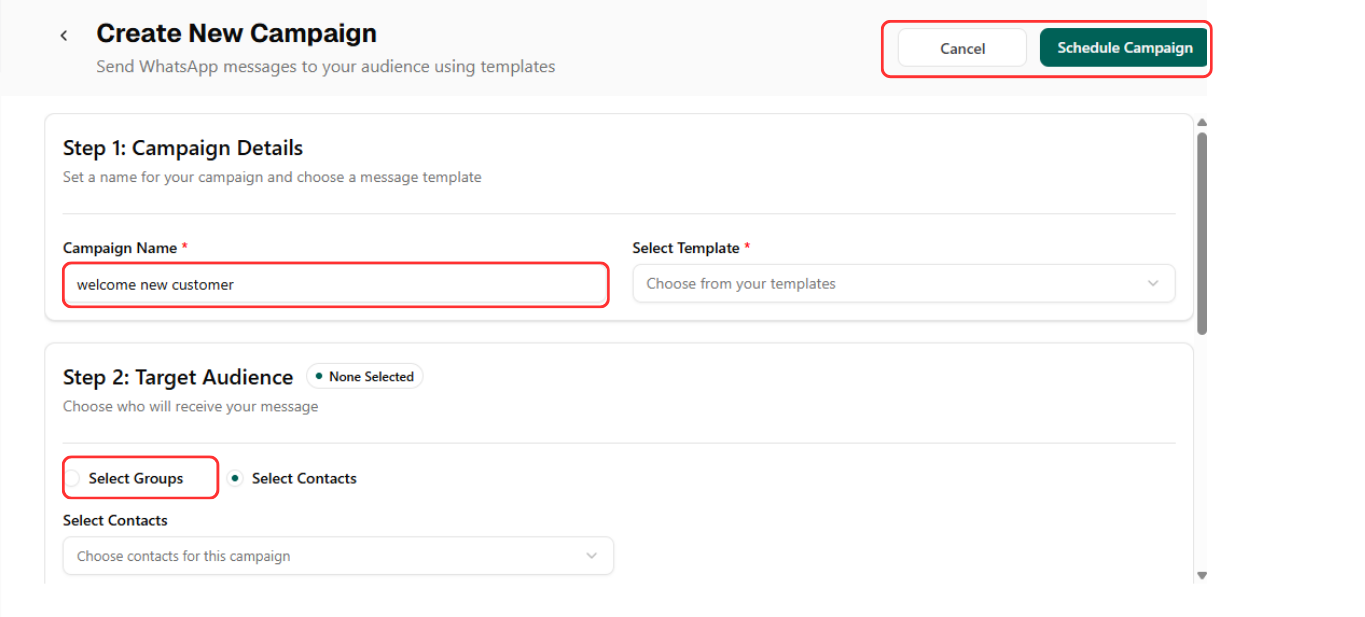
Campaign setup — name your campaign, pick your template, and select your audience group
Step 6: Set the Schedule and Confirm
In Step 3 of the campaign flow, select "Schedule for Later." A date picker and time selector appear. Choose your send date and time. Roklo displays a confirmation showing when sending will begin. Review everything — campaign name, template, audience, and scheduled time — then click "Schedule Campaign."
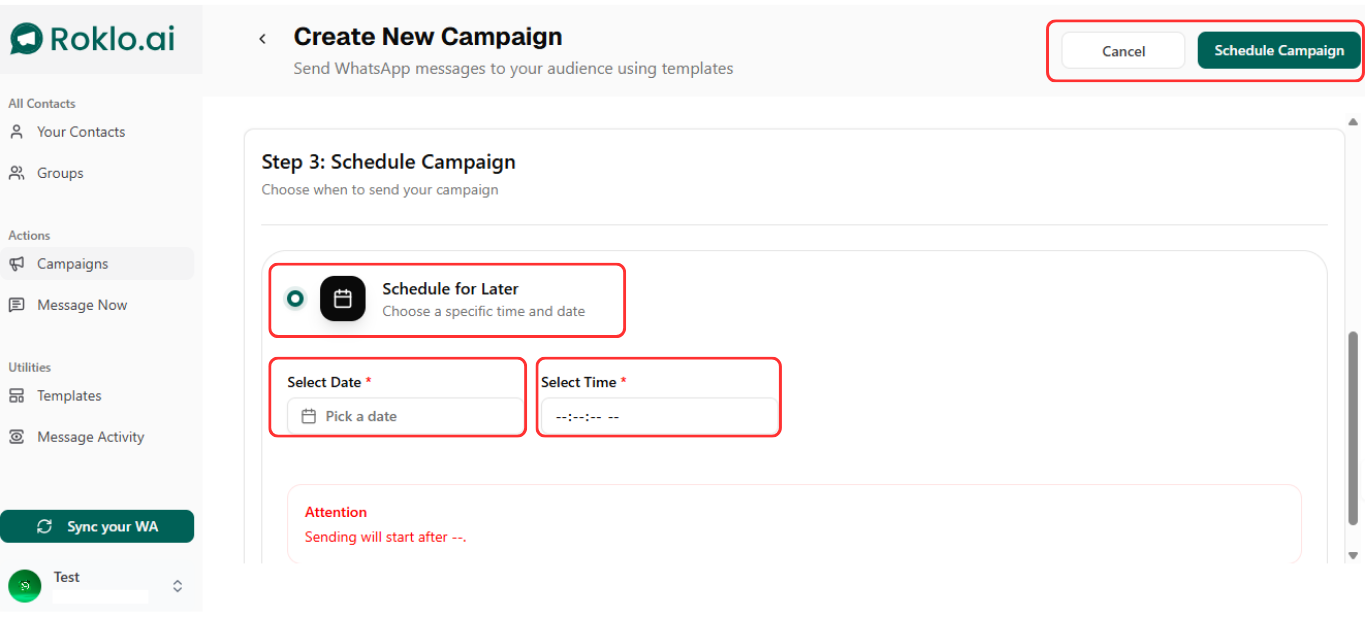
Schedule Campaign — select "Schedule for Later", pick your date and time, then confirm
Once confirmed, the campaign is queued. Roklo manages delivery at the scheduled time, spacing messages automatically. You do not need to be logged in or active at the send time for the campaign to go out.
Result: your message delivers to your full selected audience at the scheduled time, personalised to each recipient, with send intervals managed to stay within WhatsApp's safe usage patterns.
In short: Six steps: connect WhatsApp, import and group contacts, write a template, create a campaign, select your audience, set the schedule and confirm. The rest is automatic.
The step-by-step process above covers scheduling to a group. A few specific points worth understanding when scheduling at scale:
Groups are the unit of scheduling, not individual contacts
When you schedule a campaign in Roklo, you are scheduling to a group. Your segmentation in Step 2 determines the reach of your scheduled send. A well-segmented group list makes campaign scheduling significantly faster — select the group, set the time, and the campaign is ready.
The same campaign can be duplicated for different send times
To send the same message to different groups at different times, create the campaign once, duplicate it, change the target group and schedule, and run both. More efficient than setting up each campaign from scratch.
Scheduled campaigns can be edited before the send time
If you need to change the message, audience, or scheduled time before a campaign goes out, you can edit it from the Campaigns dashboard. Once the send time passes and delivery begins, the campaign cannot be modified.
Scheduling is only as useful as the segmentation behind it. A well-timed message to the wrong group is still a poorly targeted campaign.
Send timing affects open rates, response rates, and report rates. WhatsApp messages are opened faster than email — the average open happens within minutes of delivery. That means send time has a direct impact on when your message gets read and acted on.
| Use Case | Best Send Time | Why |
| Promotional offers | 10am to 12pm | High attention window before afternoon activity picks up |
| Appointment reminders | 24 hours before, 9am to 11am | Enough notice to reschedule. Morning delivery gets seen. |
| Payment follow-ups | 10am or 3pm | Business hours. Avoids the friction of after-hours money messages. |
| Event reminders | 48 hours before and morning of | Two-touch approach improves attendance rates. |
| Weekly newsletters or updates | Tuesday to Thursday, 10am to 11am | Mid-week, mid-morning consistently outperforms other windows. |
These are starting points based on broad patterns. Your specific audience may respond differently. After the first two or three scheduled campaigns, check Message Activity in Roklo for delivery and response patterns, and adjust your timing accordingly.
What to avoid
Scheduling messages between 9pm and 8am in the recipient's time zone. Late-night messages have higher ignore rates and higher block rates. Even relevant messages feel intrusive at the wrong hour.
Schedule at consistent intervals, not random bursts
A contact who receives a WhatsApp message from you every Tuesday at 10am develops a predictable relationship with your sends. Consistency builds familiarity, and familiarity reduces report rates over time.
Do not schedule the same message twice to the same group
Duplicate sends to the same contact are one of the faster ways to accumulate spam reports. If a campaign did not get the response you expected, change the message before the next send. For context on what affects message delivery, see why your WhatsApp messages are not being delivered.
Review the template before every scheduled campaign
A message that made sense when you wrote it two days ago may need adjusting by send time. Prices change. Events get rescheduled. Offers expire. Build a review step into your scheduling workflow so no campaign goes out with stale information.
Keep frequency reasonable
Two to three sends per week is a reasonable ceiling for most business types. Scheduling makes it easy to set up multiple campaigns and lose track of total send frequency. The recipient does not care how organised your campaign calendar is — they care how many messages arrive from you in a week.
Track every scheduled campaign after it sends
Navigate to Message Activity in Roklo after each scheduled campaign completes. Delivery rate, send count, and non-delivery signals tell you whether the campaign performed as expected.
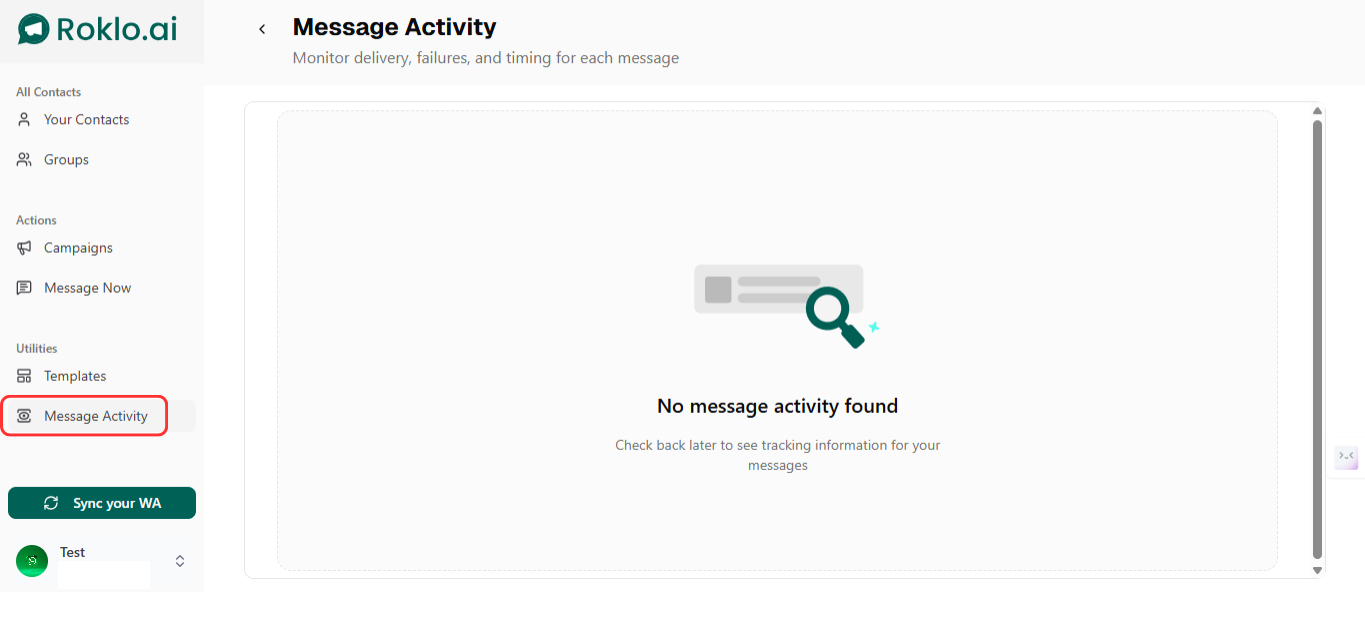
Message Activity — check delivery, failures, and timing after every scheduled campaign
If delivery rates drop significantly compared to previous campaigns, review your list quality and volume before scheduling the next send.
Scheduling messages on WhatsApp is not something the native app supports. The options that exist range from Android workarounds that handle one message at a time, to browser-based tools that schedule full campaigns to segmented contact lists at a specific date and time.
For businesses running regular outreach at scale, the choice is straightforward: a browser-based campaign scheduler removes the manual work, the timing guesswork, and the contact-by-contact effort that makes bulk WhatsApp sends unmanageable without tooling.
If you want to schedule WhatsApp campaigns without managing sends manually or tracking contact lists by hand, Roklo handles the full flow from your browser: contact import, group segmentation, message templates, campaign scheduling, and delivery tracking. It is free to use as a free bulk message sender — set your schedule, confirm the campaign, and your messages go out automatically.
Frequently asked questions
Kartik Patel
Head of Delivery
Kartik Patel is the Head of Delivery at Roklo, specializing in scaling AI solutions and leading high-performing engineering teams to deliver impactful digital transformations.