WhatsApp Bulk Messaging
Sep 3, 2026How to Create Broadcast in WhatsApp: Android and iPhone

Learn how to send bulk WhatsApp messages to hundreds of contacts in minutes. Step-by-step guide covering methods, tools, limits, and best practices for Indian businesses.

Kartik Patel
Head of Delivery
Contents
Contact us
Overview: Sending bulk WhatsApp messages means reaching hundreds of contacts in a single send action without copying and pasting one message at a time. There are three ways to do it: WhatsApp's native broadcast list, the WhatsApp Business App, and browser-based tools that work through your existing WhatsApp number. Each comes with different limits, requirements, and risk profiles. This guide covers all three, explains how to choose the right method for your list size and use case, and walks through the full send process step by step.
Every business that communicates with customers at scale eventually hits the same wall: WhatsApp's native tools were not built for bulk outreach. The broadcast list caps at 256 contacts. The Business App offers no scheduling. Copy-pasting messages one by one is not a workflow. The practical solution is a WhatsApp bulk message sender free tool that works through your existing WhatsApp Web session, with no download, no API approval, and no saved-contact requirement on the recipient's end. This guide explains exactly how to send bulk WhatsApp messages — from choosing the right method to running your first campaign.
Bulk WhatsApp messaging means sending the same message, or a personalised version of it, to multiple contacts in a single action. It is distinct from group chats, where all recipients can see each other and reply to the group. In a bulk send, each contact receives the message individually as a private conversation.
Businesses use bulk messaging for promotions, appointment reminders, payment follow-ups, event invitations, policy updates, and operational alerts. The core requirement is always the same: reach a large contact list quickly, without the message feeling generic, and without risking an account ban.
Bulk messaging is not spam when it is sent to people who recognise you, with content they find relevant.
There is no single right method. The best option depends on your list size, whether your contacts have your number saved, and whether you need scheduling or tracking.
Built into the standard WhatsApp app. A broadcast list lets you send a message to up to 256 contacts at once. Each recipient gets the message as an individual chat. The critical limitation: your message only delivers to contacts who have your number saved. Anyone who has not saved you will not receive it.
Adds business features: a business profile, quick replies, labels, and catalogue support. The broadcast functionality is identical to the standard app — 256 contacts per list, recipients must have your number saved. It does not unlock higher volume limits or remove the saved-number requirement.
Operates through your existing WhatsApp Web session. No download, no Chrome extension, no API approval. You connect by scanning a QR code in under a minute. Recipients do not need to have your number saved. Contacts are imported via Excel or synced directly from WhatsApp, organised into groups, messaged via templates with personalisation, and campaigns are scheduled for a specific date and time. Roklo's anti-ban engine manages send intervals automatically.
| Broadcast List | WhatsApp Business App | Roklo | |
| Max contacts per send | 256 | 256 | No fixed cap |
| Recipients must save your number | Yes | Yes | No |
| Scheduling | No | No | Yes |
| Message personalisation | None | None | Yes (name variable) |
| Send activity tracking | No | Limited | Yes |
| Anti-ban interval management | No | No | Yes (built-in) |
| Cost | Free | Free | Free |
In short: For lists under 256 warm contacts: the broadcast list works. For anything larger, colder, or requiring scheduling and tracking: a browser-based tool is the only practical path.
Also Read: Best WhatsApp Marketing Tool in 2026
The decision comes down to three questions:
One scenario that catches businesses off guard
A business sends a weekly update to 200 contacts via broadcast list. Delivery works for contacts who saved the number early on. New contacts added in the last three months — who never saved the number — receive nothing. The list appears to be working. The actual delivery rate is significantly lower than assumed.
The steps below use Roklo. For a detailed account-safety walkthrough alongside this process, see our guide on sending bulk WhatsApp messages without getting banned.
Open Roklo in your browser. Click "Sync your WA" in the bottom-left corner to import your existing WhatsApp contacts. For contacts not already in your WhatsApp, click "Import Excel" in the top-right corner of the Contacts dashboard. Your Excel file needs a phone number column with country code at minimum. A name column enables the {{name}} personalisation variable.
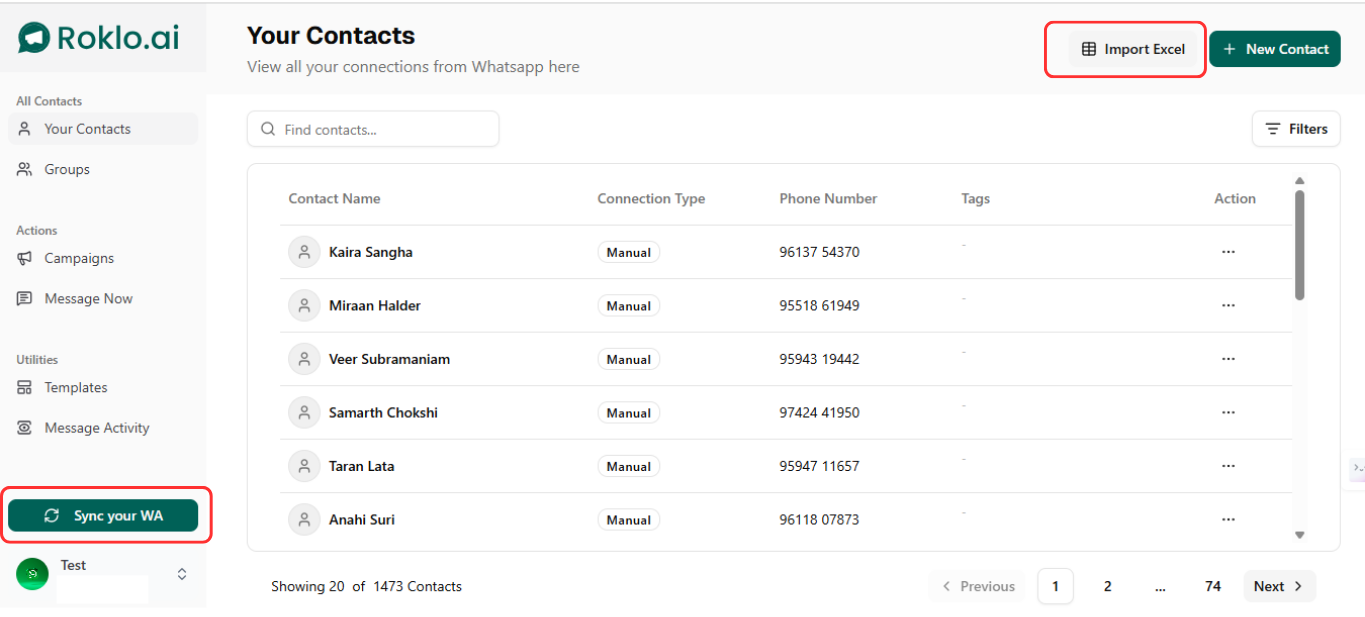
Contacts dashboard — click "Sync your WA" to import existing contacts or "Import Excel" to upload a new list
Result: your full contact list is visible in Roklo with name, connection type, phone number, and tags. The total count displays at the bottom.
What makes a clean contact list
Contacts who have interacted with your business before, opted-in leads, and existing clients. Avoid purchased lists, scraped numbers, or anyone with no prior relationship with your business. List quality is the single biggest factor in whether your bulk send stays delivered or gets flagged.
Navigate to Groups in the left sidebar. Click "+ Create Group" to open the Make New Group modal. Give the group a name that reflects the audience — by city, product interest, stage in the sales process, or appointment type. Segmentation keeps your sends relevant, and relevance is one of the strongest protections against spam reports.
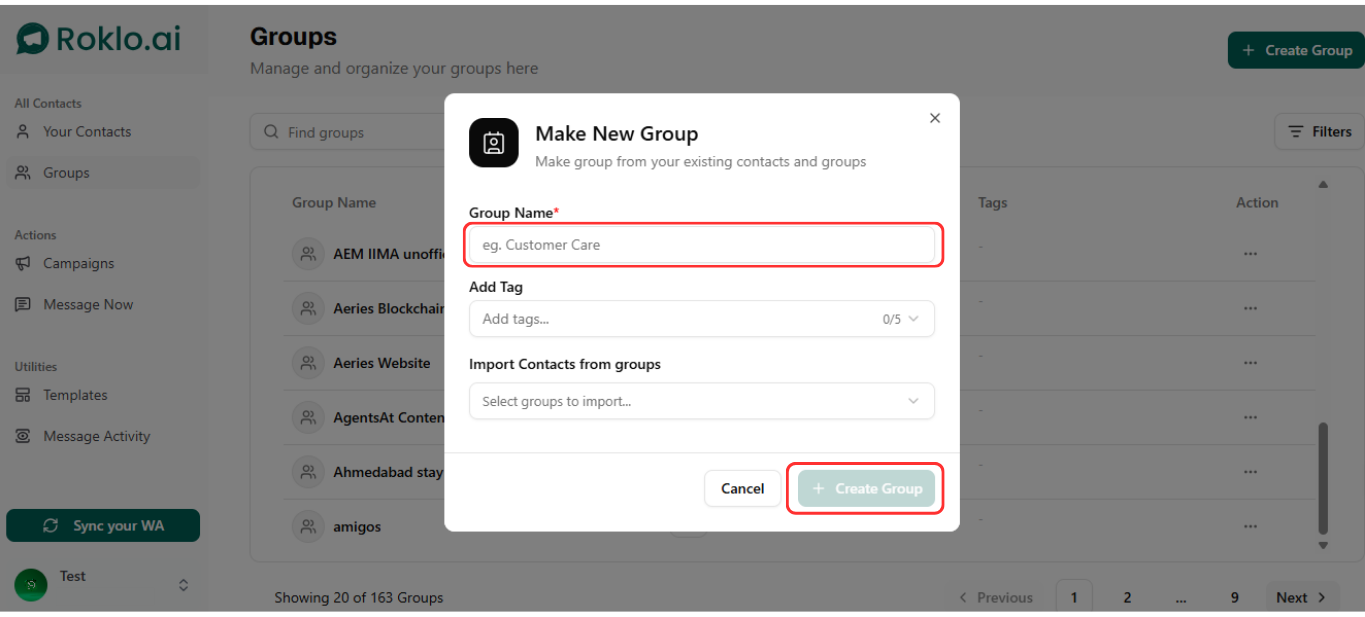
Make New Group modal — name your group and create it to segment your contact list
Contacts can belong to multiple groups. When creating a campaign, you select the group rather than picking contacts individually — which keeps targeting consistent across every send.
Go to Templates in the left sidebar. Click to create a new template. Name the template, then write your message in the Compose Message section. The live preview on the right shows exactly how the message will appear in WhatsApp before you save it.
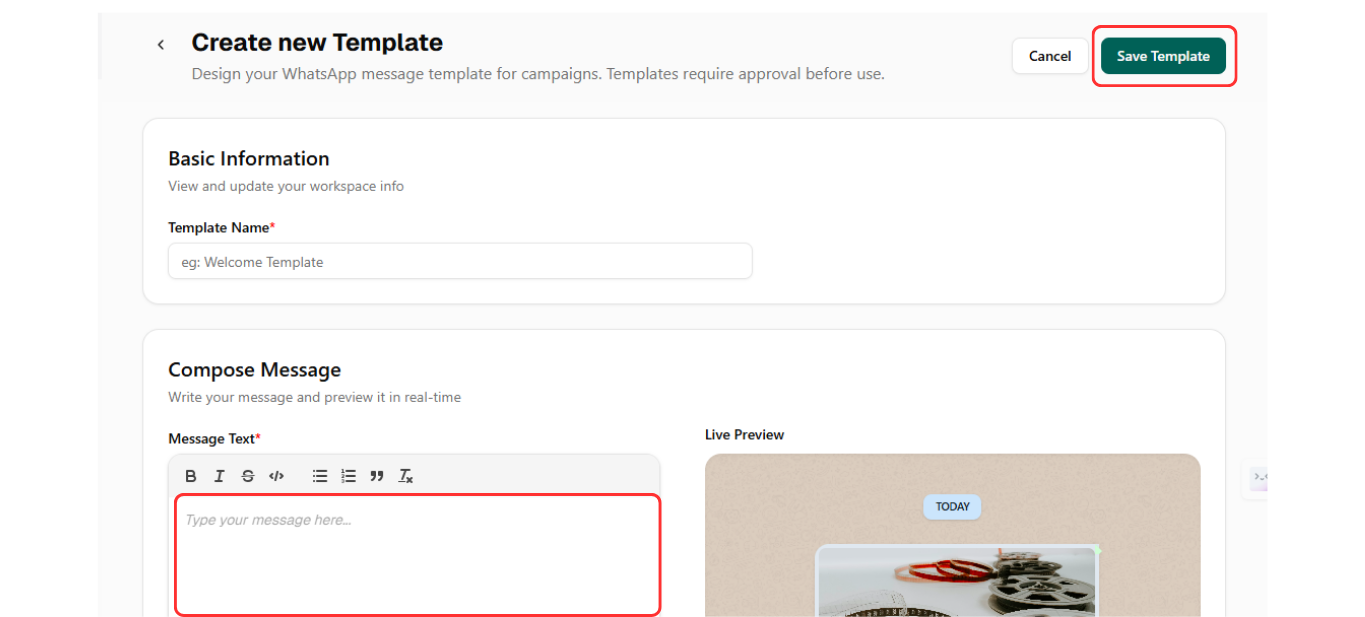
Create new Template — write your message and preview it in real-time before saving
Use the {{name}} variable at the opening of your message. A message that addresses the recipient by name reads less like a broadcast and more like a direct conversation. You can also attach images or files to the template for richer campaign formats.
Click Campaigns in the left sidebar. If no campaigns exist yet, you will see the empty state with a "+ New Campaign" button in the top-right corner. Click it to begin.
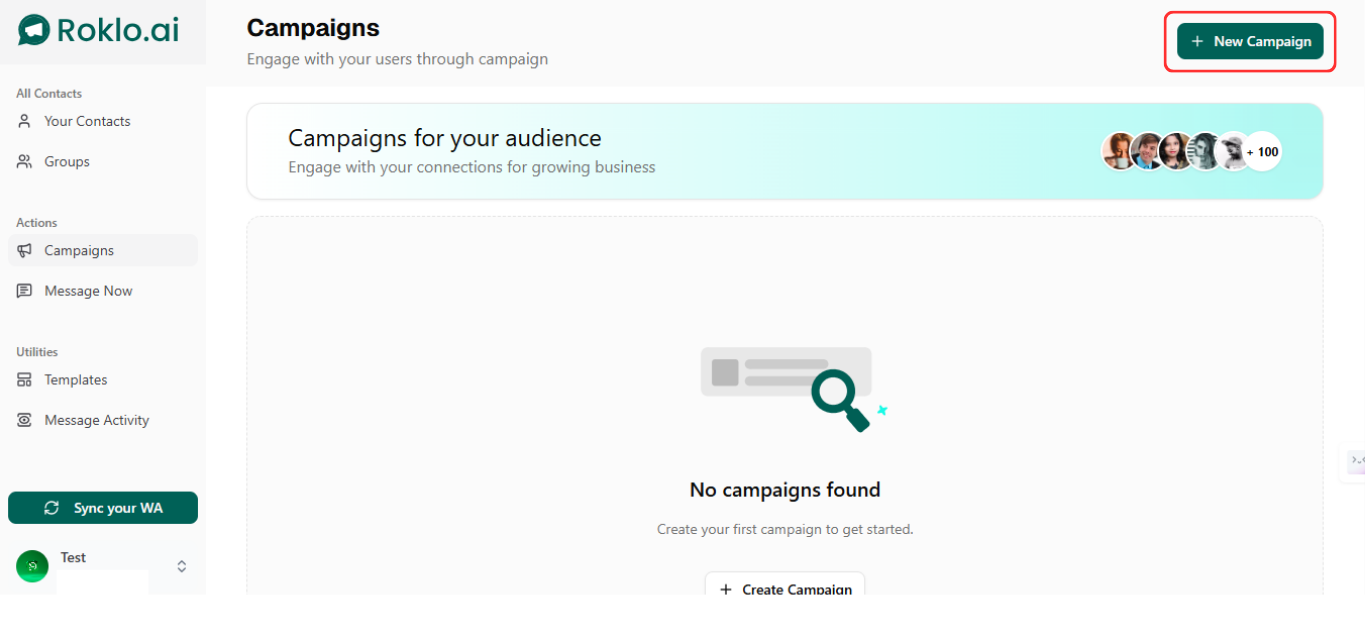
Campaigns dashboard — click "+ New Campaign" to start your first bulk send
The campaign creation flow has three steps: Campaign Details, Target Audience, and Schedule. Work through each one in sequence.
In Step 1 of the campaign flow, name the campaign and select your message template from the dropdown. In Step 2, choose your target audience. Select "Select Groups" to send to an entire group, or "Select Contacts" to pick individual contacts. For bulk sends, groups are the recommended path — they keep targeting consistent and make future sends faster.
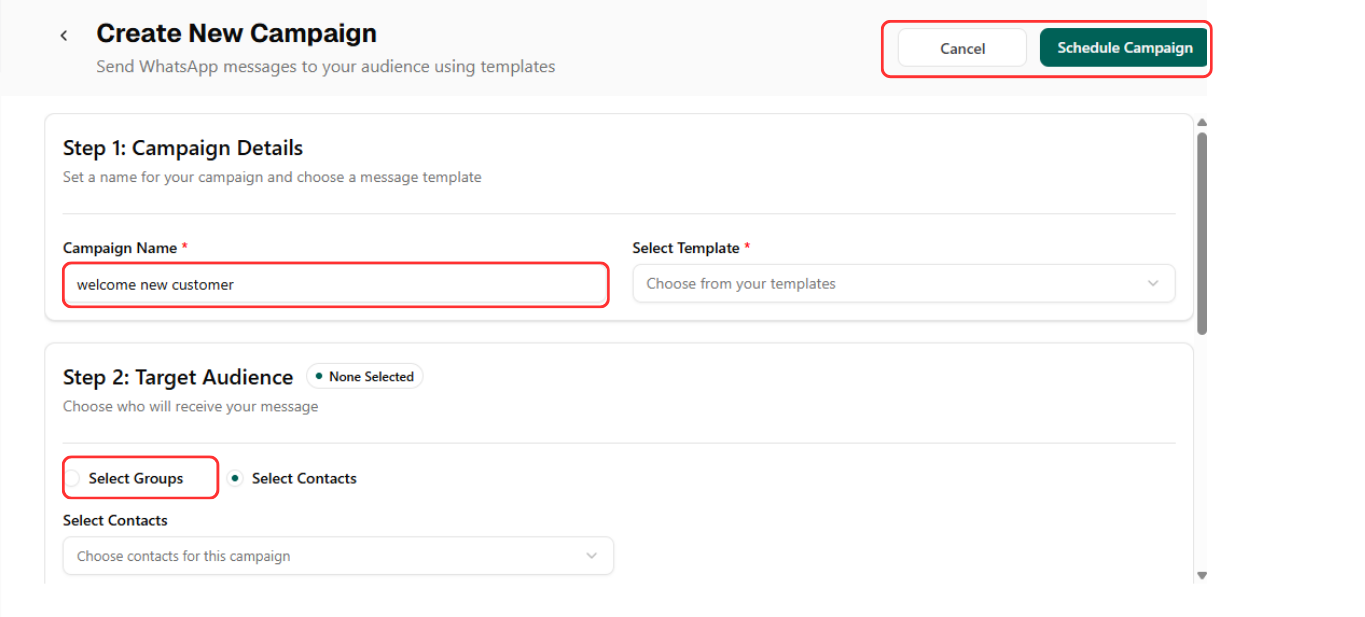
Campaign setup — name your campaign, select your template, and choose your target audience
In Step 3 of the campaign flow, select "Schedule for Later." A date picker and time selector appear. Choose your send date and time. Review everything — campaign name, template, audience, and scheduled time — then click "Schedule Campaign."
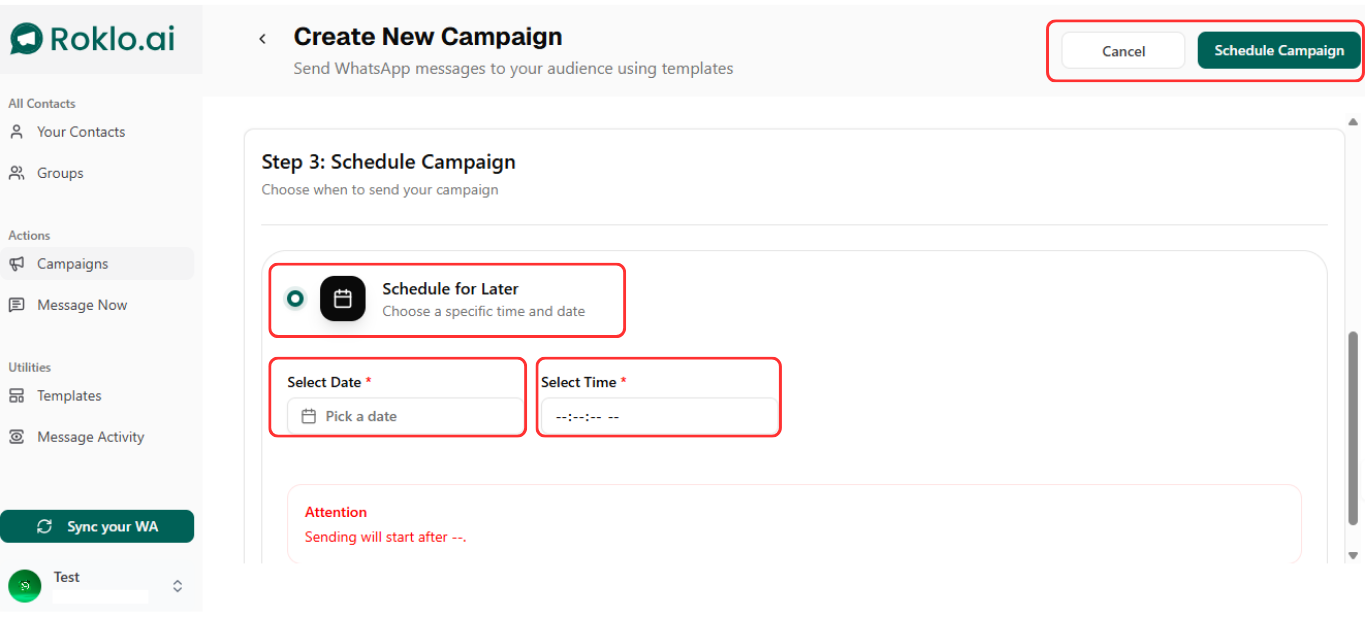
Schedule Campaign — set your send date and time, then confirm to queue the campaign
Once confirmed, the campaign is queued. Roklo manages delivery at the scheduled time, spacing messages automatically with the anti-ban engine. You do not need to be active or logged in at the send time.
In short: Six steps: import contacts, segment into groups, create a template, start a campaign, select your audience, schedule and confirm. The rest runs automatically.
If you need to send a message immediately without setting up a named campaign, use Quick Send. Click "Message Now" in the left sidebar. Select your recipients — either a group or individual contacts — then compose your message or choose a saved template.
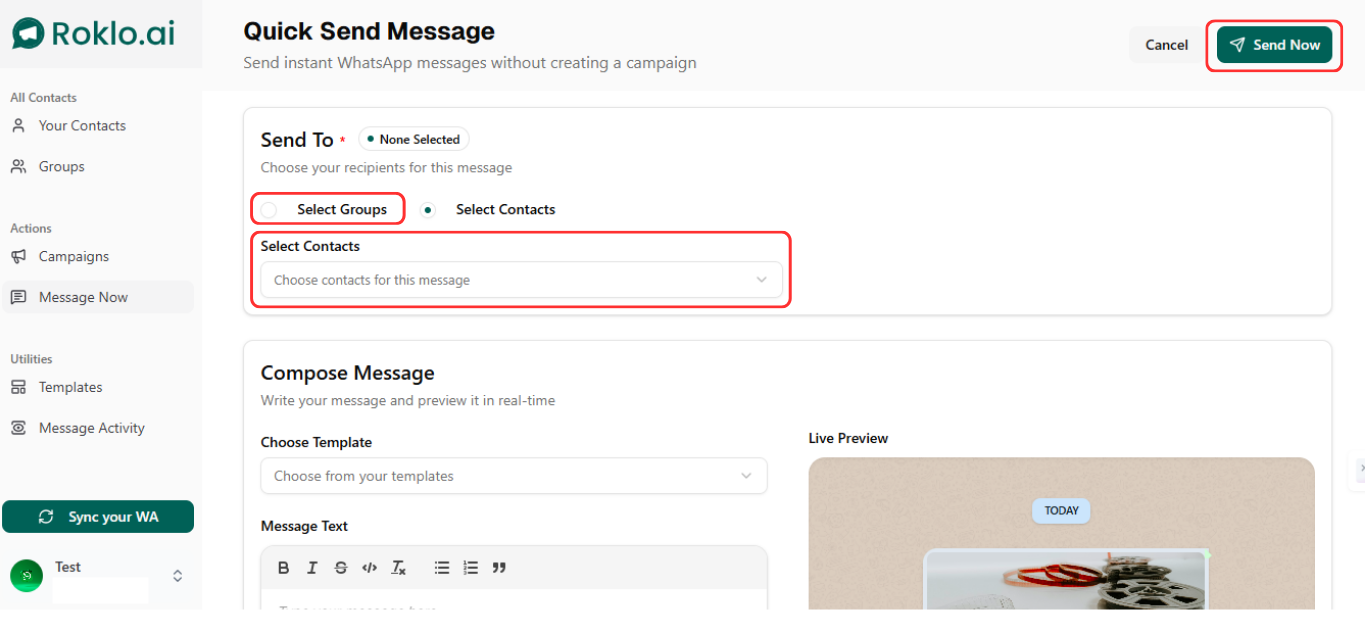
Quick Send — select recipients and choose whether to send to groups or individual contacts
Write your message in the Message Text area, choose an attachment if needed, and preview it in real-time on the right before sending. Click "Send Now" when ready. Messages go out immediately with the anti-ban engine managing the intervals.
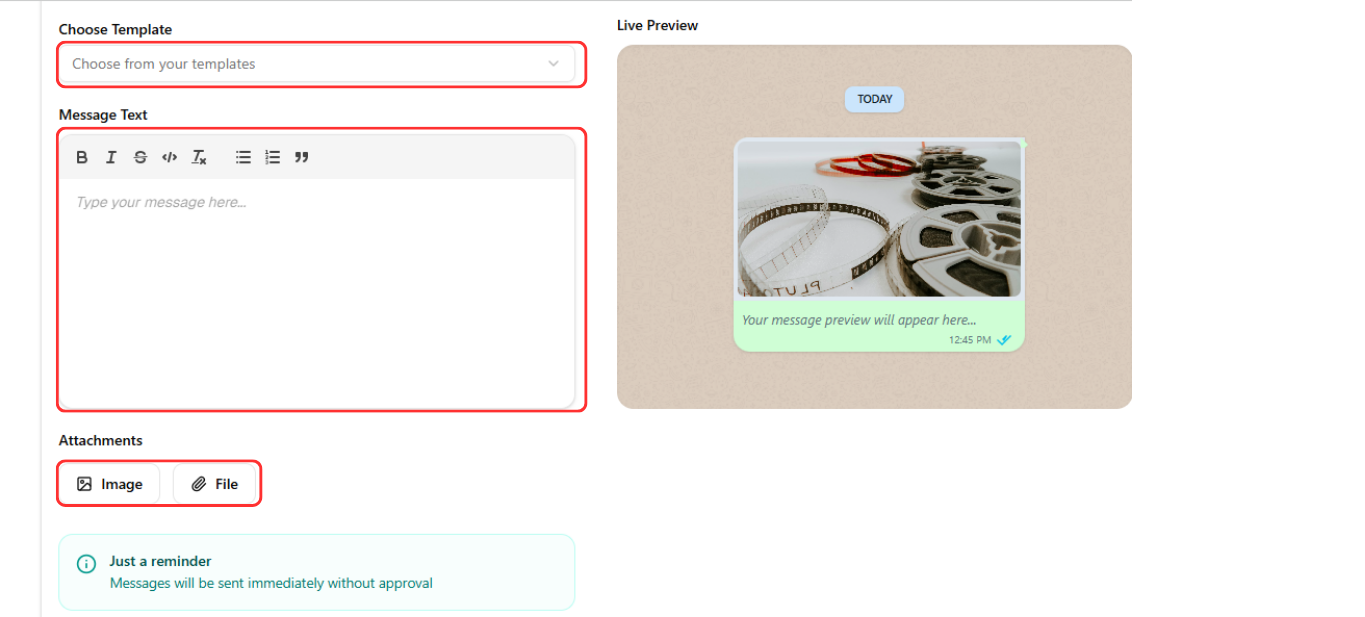
Quick Send compose — write your message, attach files or images, and preview before sending
Quick Send is best for time-sensitive updates where campaign scheduling is not practical — a last-minute offer, an urgent alert, or a follow-up that cannot wait for a scheduled campaign.
Deliverability on WhatsApp is earned through consistent sending behaviour and list quality. These are the factors that directly affect whether your bulk messages reach inboxes or get flagged.
Every spam report from an unrecognised sender pushes your account closer to a restriction. Your existing clients, opted-in leads, and active contacts are safe. Contacts who do not know you are a liability regardless of how relevant your message is.
A message the recipient was expecting will not be reported. Before every campaign, ask one question: does this contact have a reason to expect this message from me today?
The {{name}} variable is the minimum. Where your contact data allows, reference something more specific — their last purchase, appointment date, or city. For a deeper look at what causes messages to stop delivering altogether, see why your WhatsApp messages are not being delivered.
Two to three sends per week is a reasonable ceiling for most business types. Even a highly engaged contact list will start ignoring — or reporting — messages if the frequency is too high.
Deliverability is a long-term metric. The account that sends relevant messages at the right frequency to a clean list keeps delivering indefinitely.
Volume is one of the most common reasons people trying to send bulk WhatsApp messages run into problems. The number itself is rarely the trigger — it is the sudden jump. WhatsApp does not flag accounts for hitting a specific daily count. It flags accounts that spike overnight.
| Account History | Recommended Daily Volume | Key Guidance |
| New number (under 1 month) | 50 to 100 messages/day | Start low. Build sending history before scaling. |
| Established (1 to 6 months) | 200 to 500 messages/day | Increase in weekly steps, not daily jumps. |
| Active (6+ months) | 500 to 1,000 messages/day | Consistent daily patterns. No sudden spikes. |
Account warm-up
Starting bulk sends on a number for the first time? Begin at 50 to 100 messages per day for the first two weeks. Increase by 50 to 100 per week after that. A gradual ramp-up builds a safe sending history. A sudden spike on a new number is the most reliable way to trigger a restriction.
Opt-in means the recipient agreed to receive WhatsApp messages from you. An existing client relationship, a website form with a WhatsApp consent checkbox, or a WhatsApp-based enquiry from the contact all qualify. A purchased list, an event-collected number, or a scraped contact does not.
"Reply STOP to unsubscribe" gives contacts a way to exit without reporting you as spam. A contact who opts out is one fewer potential spam report.
Check Message Activity in Roklo after each send. Navigate to "Message Activity" in the left sidebar to see delivery status, failures, and timing for each message sent. A drop in delivery rates or an increase in non-delivery signals may indicate your account is being throttled.
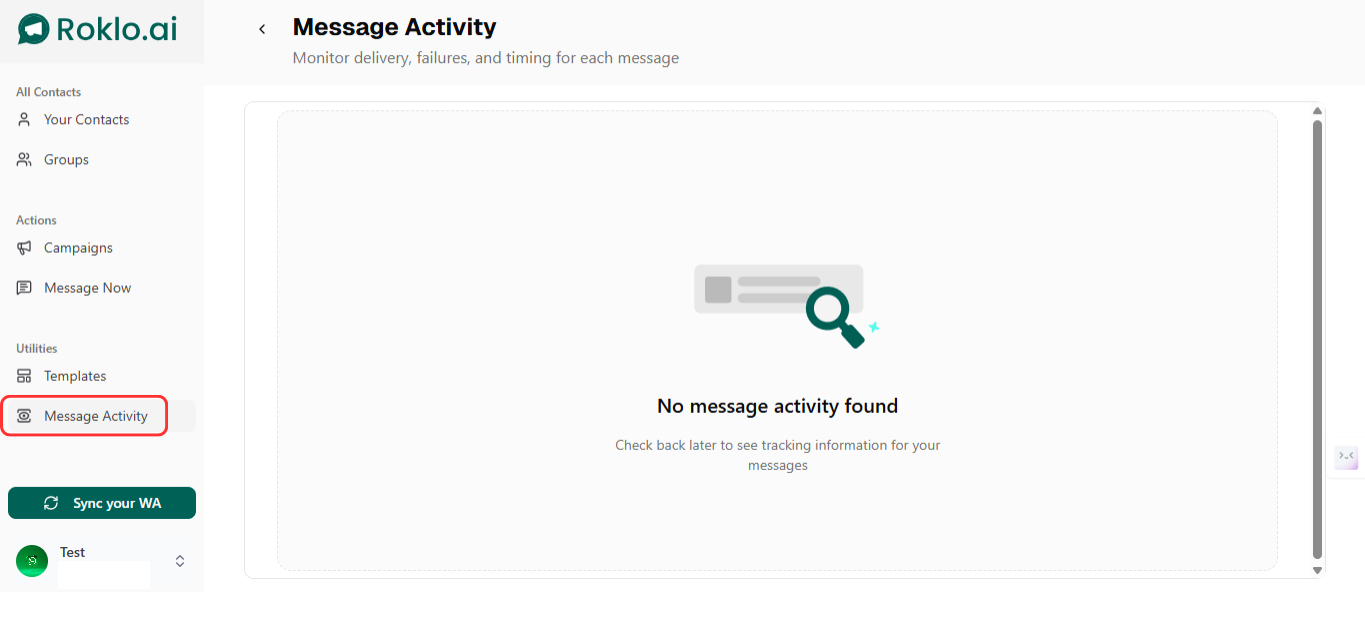
Message Activity — monitor delivery, failures, and timing after every campaign
If delivery rates drop significantly, reduce volume and pause for 48 hours before resuming.
For a new template or a new campaign type, send to a small test group of 20 to 30 contacts first. Check delivery, check that the {{name}} variable is pulling correctly, then send at full volume.
Remove contacts who have not engaged in 90 days and contacts who have asked to be removed. A smaller active list outperforms a large stale one on every metric: delivery rate, response rate, and spam report rate.
Knowing how to send bulk WhatsApp messages is straightforward once you understand the method options and the volume principles. The broadcast list works for small, warm lists where every contact has your number saved. The Business App adds minimal features without changing the core limits. A browser-based tool is the only path that removes the saved-contact requirement, supports lists above 256, and adds scheduling and tracking.
The businesses that send bulk WhatsApp messages successfully long-term are not the ones with the largest lists. They are the ones with the cleanest lists, the most relevant messages, and the most consistent sending behaviour.
If you want to manage your bulk sends without tracking intervals manually or building your contact list by hand, Roklo handles the full flow from your browser: imports, groups, templates, campaigns, scheduling, and message tracking. It is free to use as a free bulk message sender — open your browser, sync your contacts, and your first campaign is live in minutes.
Head of Delivery
Kartik Patel is the Head of Delivery at Roklo, specializing in scaling AI solutions and leading high-performing engineering teams to deliver impactful digital transformations.