Whatsapp Guides
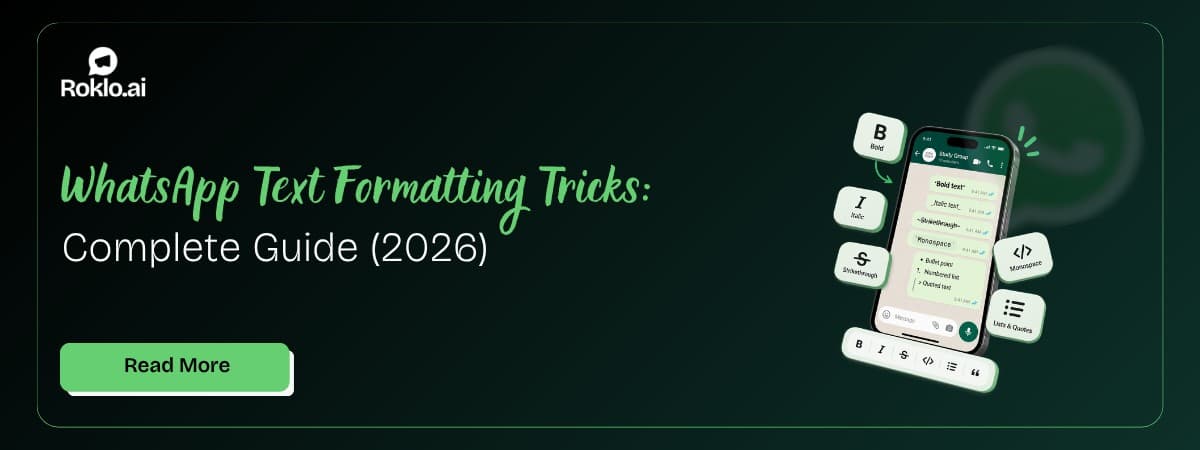
Sep 23, 2026WhatsApp Text Formatting Tricks: Complete Guide (2026)

Learn how to see locked chats in WhatsApp by swiping down or using the secret code. Covers Android, iPhone, WhatsApp Web, and what to do if you forgot the code.

Kartik Patel
Head of Delivery
Contents
Contact us
Overview: WhatsApp's Chat Lock feature moves selected chats into a hidden folder protected by your fingerprint, Face ID, or device PIN. Once a chat is locked, it disappears from your main chat list. To see it, you swipe down on the Chats screen to reveal the Locked Chats folder, then authenticate. If the folder itself is hidden using a secret code, you find it by searching that code in WhatsApp. This guide covers both methods with separate steps for Android, iPhone, and WhatsApp Web, plus how to lock, unlock, and recover access if you forget the code.
For businesses managing outbound WhatsApp campaigns, a WhatsApp bulk message sender free tool handles those sends separately. This guide covers the Chat Lock privacy feature for personal and business WhatsApp accounts.
Chat Lock is a WhatsApp privacy feature that moves a selected conversation into a separate, protected folder. When you lock a chat, it leaves the main chat list and only appears in the Locked Chats folder, accessible only with your fingerprint, Face ID, or device PIN.
What Changes | What Happens |
Chat visibility in main list | The chat is removed from the main chat list and moved to a separate Locked Chats folder. It is invisible to anyone scrolling your chat list. |
Notifications | Notifications from locked chats show as "WhatsApp: 1 new message" with no sender name and no message preview, protecting privacy on the lock screen. |
Media in gallery | Photos and videos from a locked chat are excluded from the WhatsApp media tabs (Photos, Videos, Documents). They do not appear in the phone gallery automatically. |
Status updates | The contact's WhatsApp Status is hidden from you while the chat is locked. You will not see their status updates in the Status tab. |
Other person notified | No. The other person is not notified that you have locked the chat. The conversation appears completely normal on their end. |
Chat Lock vs Archived Chats: Locked chats and archived chats are different. Archived chats hide the conversation but still appear if someone messages you. Locked chats are fully protected with authentication and hide all notifications, media, and the contact name from the main list.
On Android, the Locked Chats folder is accessible by swiping down on the main Chats screen.
If you do not see Locked Chats after swiping: Either no chats have been locked on this phone, or the Locked Chats folder has been hidden using a secret code. See the Secret Code section below for how to find it.
Also Read: WhatsApp Text Formatting Tricks: Complete Guide (2026)
On iPhone, the steps are identical to Android, pull down on the chat list to reveal the folder.
iPhone Face ID note: If Face ID fails (incorrect angle, glasses, mask), WhatsApp falls back to your device passcode. If that also fails, the folder remains inaccessible until correct authentication is provided. There is no bypass, this is intentional.
WhatsApp Web and the Desktop app handle locked chats differently from mobile. The Locked Chats folder appears in the left sidebar, but accessing it requires a secret code, not biometric authentication.
Important: You must have set up a secret code on your mobile WhatsApp app to access locked chats on WhatsApp Web. If no secret code was configured, you cannot view locked chats from a browser or desktop. The secret code is separate from your fingerprint, it is a text or number code you set manually in WhatsApp Settings > Privacy > Chat Lock > Change Secret Code.
Also Read: WhatsApp Group Link: How to Create, Share and Manage It
WhatsApp has an additional privacy option: you can hide the Locked Chats folder entirely, so it does not appear when you swipe down on the chat list. When this option is on, the folder only appears when you search for your secret code.
The hidden locked chats mode provides two layers of protection: someone who picks up your phone cannot see the Locked Chats folder at all, and even if they know to search, they need the code and biometric authentication to get in.
Locked chats modify how WhatsApp handles notifications for those conversations. Instead of showing the sender's name and message preview, all notifications from locked chats appear as "WhatsApp: 1 new message" with no identifying information. How to hide name on WhatsApp notification iPhone covers hiding sender names from ALL WhatsApp notifications - not just locked chats, which is a useful complement to the Chat Lock feature.
For media: photos and videos sent or received in locked chats are excluded from WhatsApp's in-app media tabs (Photos, Videos, Documents). They do not auto-save to the phone gallery and do not appear in search results within WhatsApp. They are accessible only inside the locked chat itself.
Also Read: WhatsApp Marketing Strategies: 10 Proven Tactics for 2026
If you need to lock a chat that is currently in your main list:
To hide the Locked Chats folder using a secret code: Go to WhatsApp Settings > Privacy > Chat Lock. Enable "Hide Locked Chats" and set a secret code. After this, the folder only appears when you search for that code.
To move a chat back to the main list and remove the lock:
Chat Lock is one component of WhatsApp's privacy system. Securing your WhatsApp business chats covers account-level and message-level privacy controls that go beyond individual chat locking, useful for businesses managing sensitive client conversations on WhatsApp.
Also Read: How to Fix WhatsApp Images Not Showing in Gallery (9 Easy Fixes)
Option 1 - Use biometric authentication: If you set up fingerprint or Face ID for Chat Lock, you can still access the folder using biometrics even if you forget the secret code. The code is only needed for WhatsApp Web access and for the hidden folder search method. Mobile access still works with biometrics.
Option 2 - Register a new fingerprint: On Android, go to phone Settings > Security > Fingerprints and add a new fingerprint. WhatsApp recognizes any registered fingerprint for Chat Lock authentication, so the new fingerprint will work to unlock the folder.
Option 3 - Reset the secret code: Go to WhatsApp Settings > Privacy > Chat Lock. If you can authenticate with biometrics, you can tap "Change Secret Code" and set a new one without knowing the old code.
Option 4 - Unlock and clear (last resort): In WhatsApp Settings > Privacy > Chat Lock, there is an option to "Unlock and clear locked chats." This removes the lock from all chats and returns them to the main list. Back up your chats first (WhatsApp Settings > Chats > Chat Backup) before using this option, in case any data is affected.
Warning: If you forget both the secret code and cannot authenticate with biometrics, and have not enabled any of the recovery options above, WhatsApp cannot recover locked chats. Regular backups (Settings > Chats > Chat Backup) prevent permanent data loss in this scenario.
Seeing locked chats in WhatsApp requires two things: knowing which method to use and having the correct authentication ready. Swipe down on the Chats screen on Android or iPhone to reveal the Locked Chats folder, then use your fingerprint, Face ID, or PIN to open it. If the folder is hidden, search for your secret code to reveal and access it. On WhatsApp Web, click Locked Chats in the sidebar and enter your secret code.
If you forget the secret code, biometric authentication still works on mobile. If biometrics fail, register a new fingerprint on your device or use the reset option in Settings > Privacy > Chat Lock. Always keep WhatsApp backups enabled to prevent data loss from any lock reset.
For businesses managing WhatsApp outreach alongside personal privacy settings, Roklo is a free bulk message sender that handles how to send bulk WhatsApp messages from a browser, no API required, no saved contacts needed.
Also Read: Best WA Sender Tools for 2026: Why Roklo is the Safest Choice
Head of Delivery
Kartik Patel is the Head of Delivery at Roklo, specializing in scaling AI solutions and leading high-performing engineering teams to deliver impactful digital transformations.