Whatsapp Guides
Sep 30, 2026How to Mute Calls on WhatsApp: Android, iPhone and Web

Learn how to create a WhatsApp catalog for your business, add products, manage collections, and share your catalog with your full contact list in one campaign.
Arjun Mehta
Content Strategist at Roklo
Contents
Contact us
Overview: A WhatsApp catalog is a built-in product and service showcase inside the WhatsApp Business app. Customers browse your offerings directly in chat without leaving WhatsApp. Each item carries a name, price, description, up to 10 images, and an optional website link. You can add up to 500 items, group them into collections, and share individual items or the full catalog in any conversation. Setup takes under 10 minutes on Android, iPhone, or WhatsApp Web.
Most small businesses on WhatsApp still share product details by sending photos and prices one message at a time. A WhatsApp business catalog solves this. Instead of a scattered photo dump, your customer gets a clean browsable list with names, photos, and prices already organised. Once the catalog is live, sharing it is one tap. Promoting it to your full contact list is where a WhatsApp bulk message sender free tool comes in: paste your catalog link into a campaign and your entire list receives it individually in minutes. This guide covers how to create the catalog, manage it, share it, and send it to your contacts at scale.
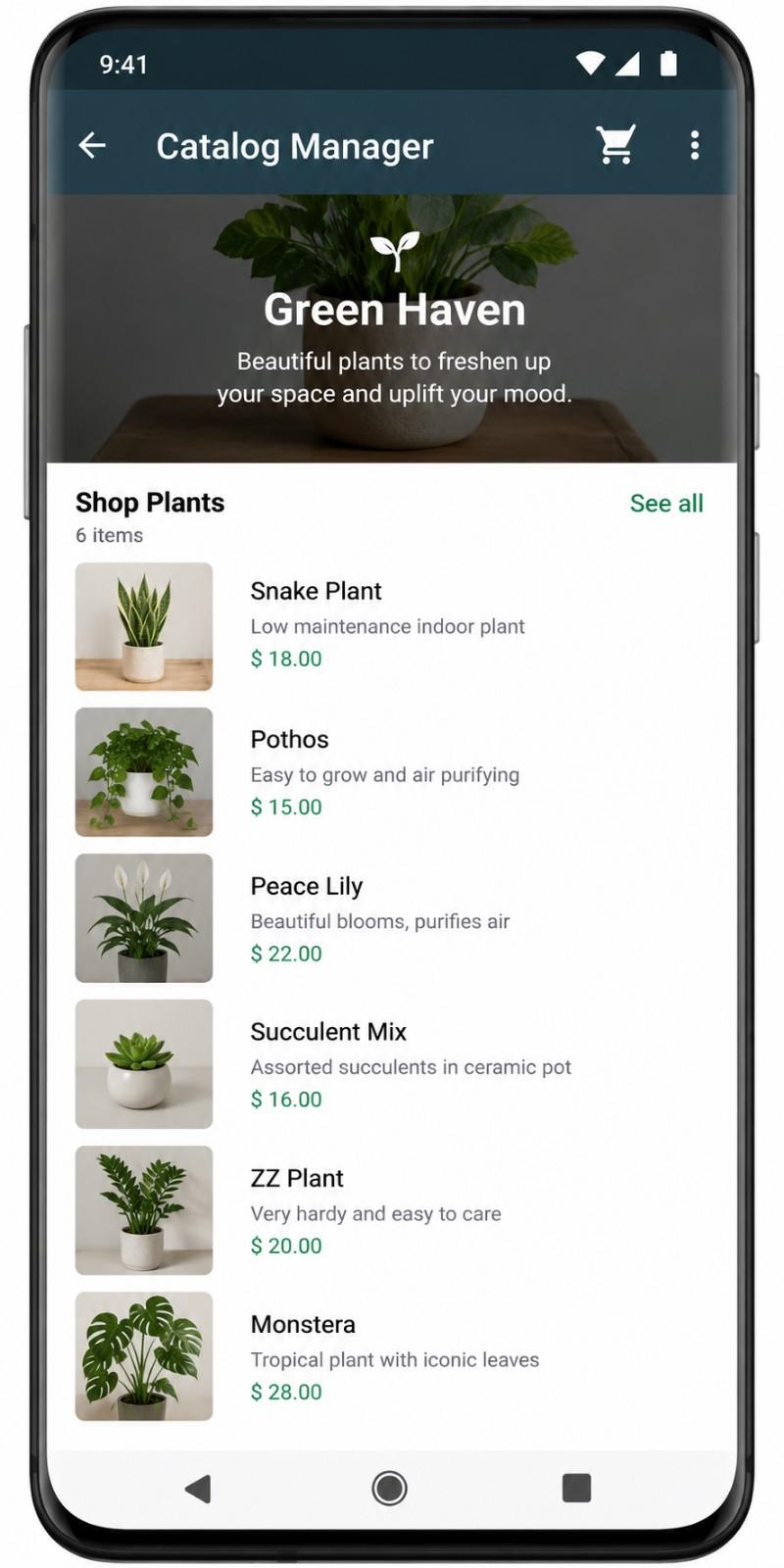
A WhatsApp catalog is a digital product and service showcase embedded inside the WhatsApp Business app. It works like a mobile storefront inside your chat window. Customers tap to browse, see product photos and prices, and message you directly to ask questions or place an order.
Unlike sending individual product photos in a chat, the catalog keeps everything structured. Each item has its own page with images, a description, a price, and an optional link to your website or a payment page. Customers can view the full catalog, tap individual items, and share specific products with others.
The catalog is visible on your WhatsApp Business profile. Anyone who opens your profile sees the catalog link immediately, with no need for you to send it first.
A WhatsApp catalog turns your Business profile into a browsable storefront. Customers see what you offer before they even message you.
Before setting up a WhatsApp business catalog, confirm you have the following in place.
| Note: You do not need a website to create a WhatsApp catalog. The catalog works entirely within the WhatsApp Business app. A website link per item is optional and can be added later. |
The process is straightforward on all three platforms. Pick the one you use and follow the steps below.
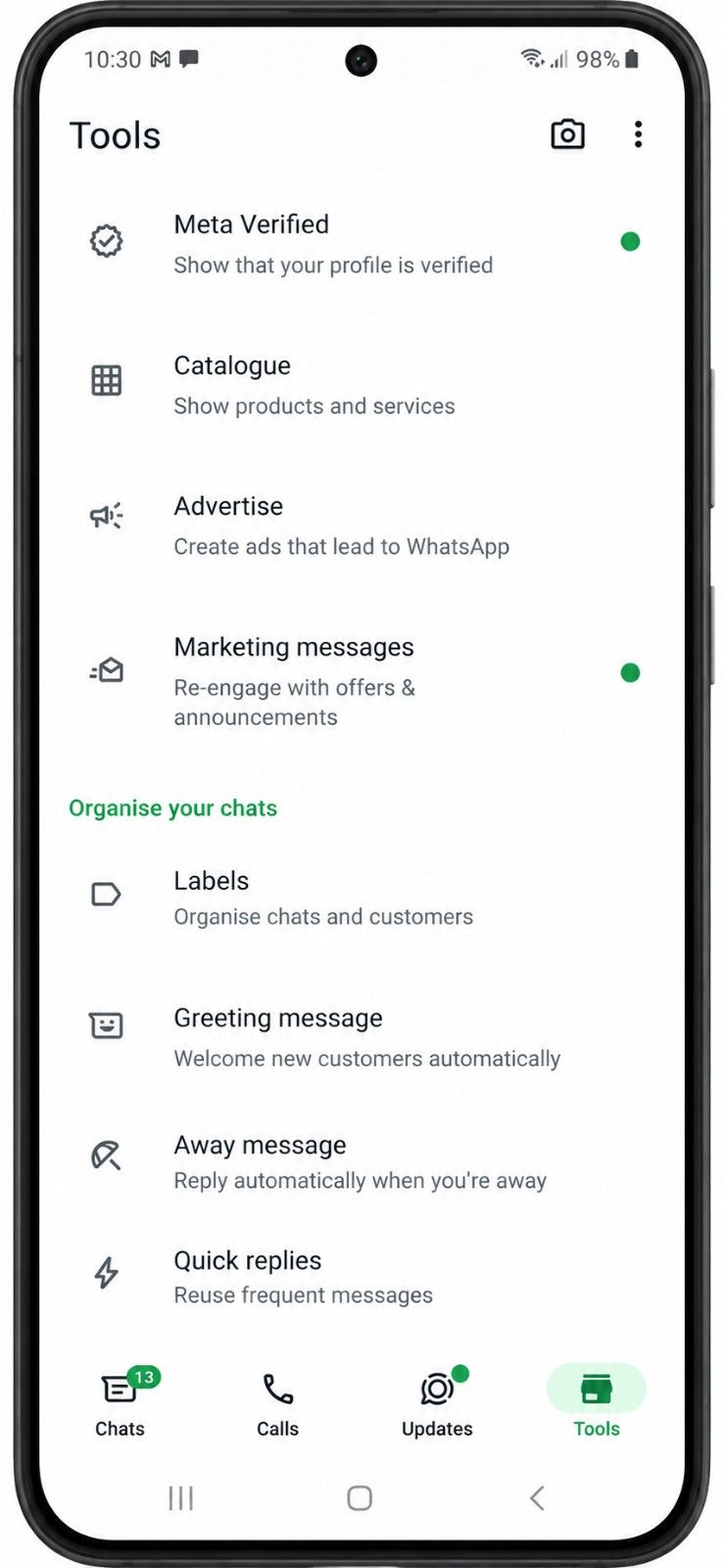
Repeat for each product or service. Your item is live immediately after saving.
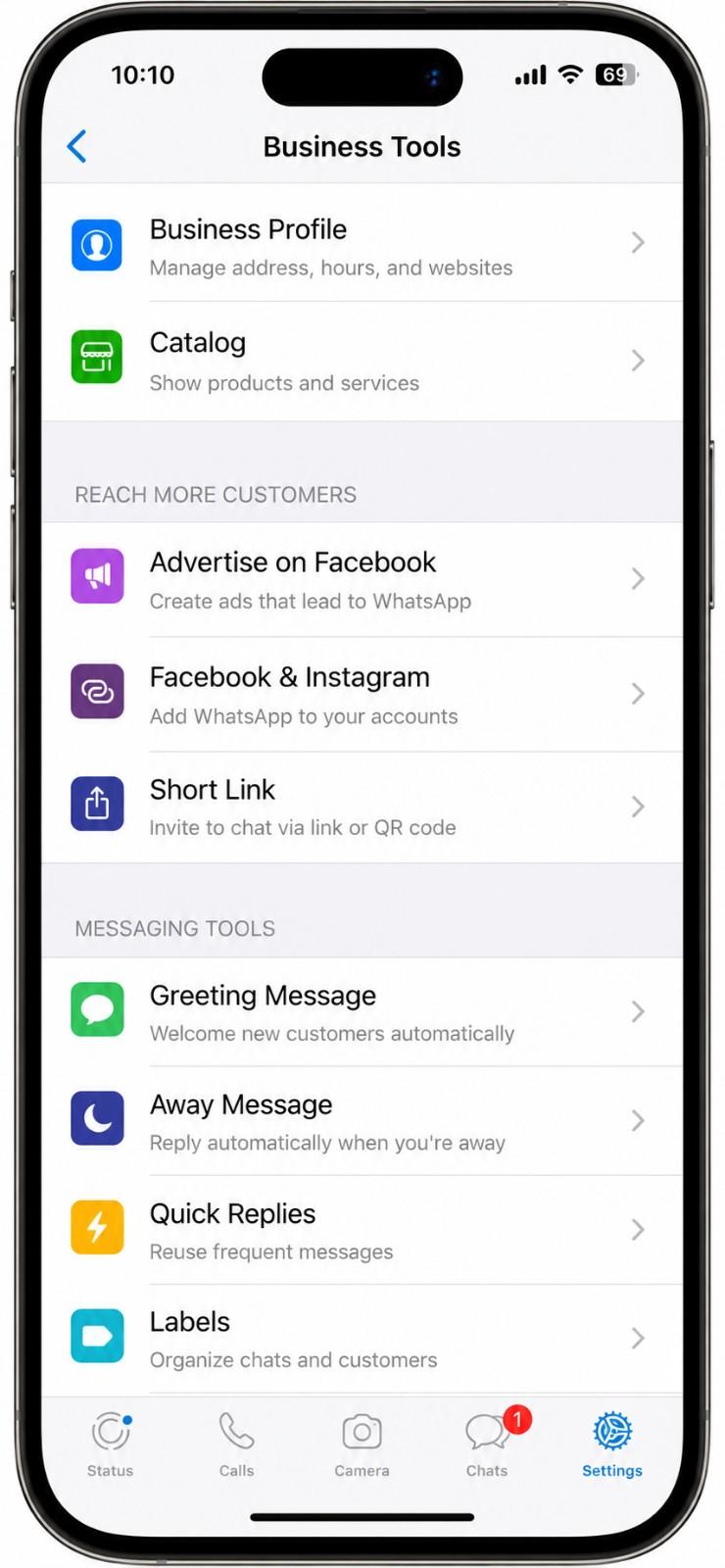
The fields and process are identical to Android. The navigation path through Settings differs slightly.
In short: Same five fields on all platforms: item name, price, description, product code, and website link. Images upload the same way. The catalog goes live immediately after each save.
A well-built catalog item reduces the number of follow-up questions a customer needs to ask. Every field you fill in is a question they do not need to send you.
For guidance on image quality when sending product photos through WhatsApp, see our guide on how to send bulk images on WhatsApp without losing quality.
Once your catalog is live, managing it is straightforward. WhatsApp updates your catalog in real time. Changes appear immediately after saving.
Tap the item in your catalog. Edit any field. Tap Save. The updated version goes live immediately. No approval required unless the item was previously rejected.
Hiding removes an item from your visible catalog without deleting it. Use this for seasonal products or items temporarily out of stock. The item stays in your catalog management view and can be unhidden at any time.
Tap the item and select Delete. Deleting is permanent. If you need the item again later, you will need to re-add it from scratch.
WhatsApp catalogs support up to 500 items. For most businesses this is more than sufficient. If you reach the limit, remove sold-out or retired items before adding new ones.
Best practice: Keep your catalog current. A customer who sees a sold-out item with no indication of availability will not follow up. Remove sold-out items or hide them until stock returns. Update prices as soon as they change.
Your catalog can be shared in multiple ways depending on who you want to reach.
Open any conversation. Tap the paperclip or attachment icon. Tap Catalog. Select the items you want to share. Tap Send. The customer receives a structured product card they can tap to view the full item detail.
From the catalog view, open any item and tap Share. This sends the customer directly to that item's page in your catalog, not the full catalog. Useful when a customer has expressed interest in a specific product.
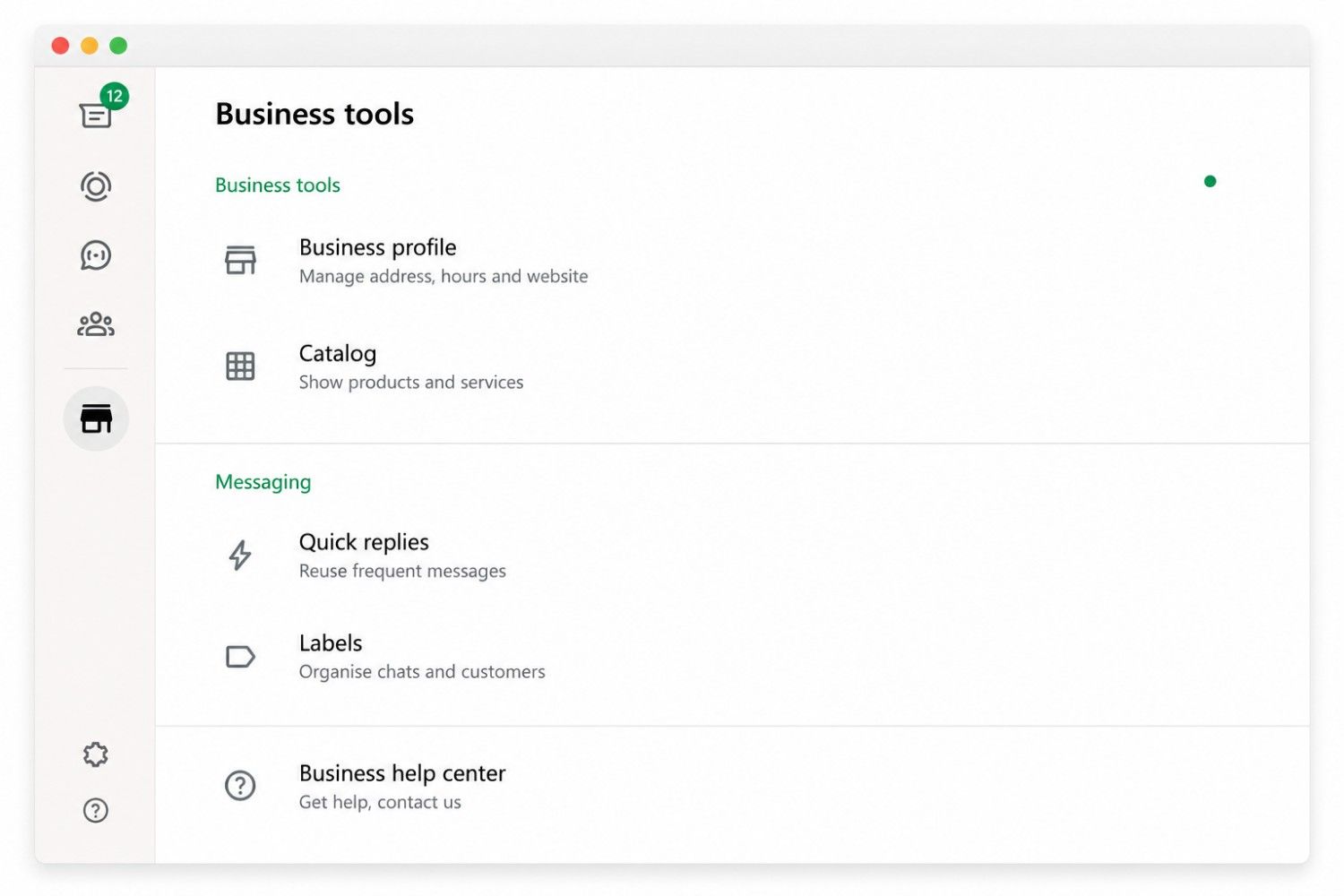
Go to Business tools, then Catalog. Tap the share or link icon. Copy the catalog link. Paste it anywhere: your Instagram bio, a WhatsApp status, a promotional message, or a bulk campaign. Anyone who taps the link opens your full catalog inside WhatsApp.
The catalog link is the most distributable asset your catalog produces. Once you have it, you can send it to your entire contact list in a single campaign.
Collections let you organise your catalog into browsable groups. Instead of a flat list of 50 items, a customer sees sections: New Arrivals, Best Sellers, Under Rs 500, Festive Specials.
To create a collection: go to Catalog, tap Collections, tap Create collection, give it a name, and add items to it. Items can belong to multiple collections. The same saree can appear in both New Arrivals and Festive Specials.
Collections make larger catalogs significantly easier to navigate. If your catalog has more than 20 items, collections are worth setting up before sharing it widely.
In short: Collections are optional but worth the 10 minutes to set up once your catalog grows past 15 to 20 items. They reduce the time a customer spends finding what they came for.
Setting up the catalog is the first half. Getting it in front of your customers is the second. WhatsApp's native broadcast list caps at 256 contacts and requires every recipient to have your number saved. For most businesses, this means a large portion of their contact list never receives the catalog.
A browser-based bulk sending tool sends your catalog link to your full contact list as individual messages, personalised by name, with no saved-contact requirement. Here is how the process works with Roklo.
Go to Business tools in your WhatsApp Business app. Open Catalog. Copy the catalog link from the share option. This is the link you will include in your campaign message.
Open Roklo in your browser and click Sync your WA to import your existing WhatsApp contacts. For contacts not already in your WhatsApp, use Import Excel. Your spreadsheet needs a phone number column with country code and a name column for the {{name}} variable.
Go to Templates. Write a short message that introduces the catalog and includes the link. Keep it under 100 words. Open with {{name}}. State what the catalog contains and why it is worth viewing. One clear action: tap the link.
Example template: Hi {{name}}, we have updated our catalog with new arrivals and current prices. Browse all products here: [catalog link]. Questions? Reply here anytime.
Go to Campaigns. Select your template and contact group. Schedule for a send time when your audience is most active (10am to 12pm on weekdays consistently outperforms other windows for promotional sends). Roklo's anti-ban engine spaces messages automatically.
For the full bulk sending process including contact segmentation and campaign scheduling, see our guide on how to send bulk WhatsApp messages. For scheduling catalog promotion campaigns ahead of a sale or event, see our guide on how to schedule messages on WhatsApp.
Businesses using the WhatsApp Business API can connect their catalog to automated messaging workflows. This unlocks capabilities the standard Business app does not support.
API catalog integration requires connecting your catalog to Commerce Manager via Meta Business Manager and setting up through a Business Solution Provider. This is a meaningful setup investment suited to businesses running WhatsApp commerce at scale.
Note: The catalog setup process covered in this guide (Android, iPhone, WhatsApp Web) is the same whether you use the standard Business app or the API. The API extends what you can do with the catalog once it exists; it does not change how you create it.
| Issue | Cause | Fix |
| Item rejected | Product violates Meta commerce policies | Review the policy and appeal from the item edit screen in the app |
| Images not uploading | File size above 5 MB or wrong format | Resize to under 5 MB. Use JPG or PNG format |
| Cannot add more items | 500-item limit reached | Remove unused or sold-out items before adding new ones |
| Catalog not showing to customers | App not updated or account not linked | Update the WhatsApp Business app. Relink the account if needed |
| Wrongly rejected item | Meta moderation error | Use the appeal option on the product edit screen |
If your catalog is not appearing to customers after updating, give it a few minutes for the changes to propagate. If the issue persists, close and reopen the app, then check the catalog again.
Square images display consistently across both Android and iPhone. A clean white or neutral background keeps the focus on the product. Images that are cluttered or poorly lit reduce the professional quality of your catalog and directly affect whether a customer trusts the product enough to enquire.
The first image should show the product clearly on its own. The second should show it in context: worn, in use, or styled. Two images reduce the number of follow-up questions a customer needs to ask before deciding.
Material, dimensions, weight, colour options, and availability. Not: 'this beautiful product is perfect for everyone.' A specific description handles the customer's pre-purchase questions before they have to ask them.
A customer who sees one price in the catalog and gets quoted a different price in conversation loses trust immediately. Prices in the catalog should match what you quote in chat at all times. Set a reminder to review prices whenever your supplier or costs change.
An enquiry about a product you cannot fulfil is a wasted conversation. Hide or delete sold-out items as soon as stock runs out. Use the Hide function if you expect the item to return. Use Delete for discontinued products.
For practical examples of how businesses across different industries use WhatsApp for customer outreach including catalog-based promotions, see our guide to WhatsApp marketing examples that actually work.
When distributing your catalog link to your full contact list, follow safe sending practices to protect your account. See our guide on how to send bulk WhatsApp messages without getting banned.
A WhatsApp catalog turns your Business profile into a browsable storefront that customers can view before they even send a message. Setup takes under 10 minutes. Management is real-time. The catalog link can be shared in a single tap or sent to your entire contact list in a campaign.
The businesses that get the most from a WhatsApp business catalog are the ones that keep it current, use collections to organise products once the list grows, and actively promote the catalog link rather than waiting for customers to find it on their own.
If you want to send your catalog link to your full contact list as individual personalised messages, without saving numbers manually or managing delivery intervals, Roklo handles the full campaign flow as a free bulk message sender. Open your browser, sync your contacts, paste the catalog link into your template, and your campaign is live in minutes.
Content Strategist at Roklo
Arjun is a content strategist with a passion for demystifying technology and helping businesses grow with smart digital solutions. At Roklo, he crafts in-depth guides, tutorials, and industry insights to empower readers and drive meaningful results. With a background in digital marketing and years of experience in content creation, Arjun specializes in SEO, branding, and SaaS. He believes in clear communication, practical advice, and staying ahead of the curve.