Whatsapp Guides
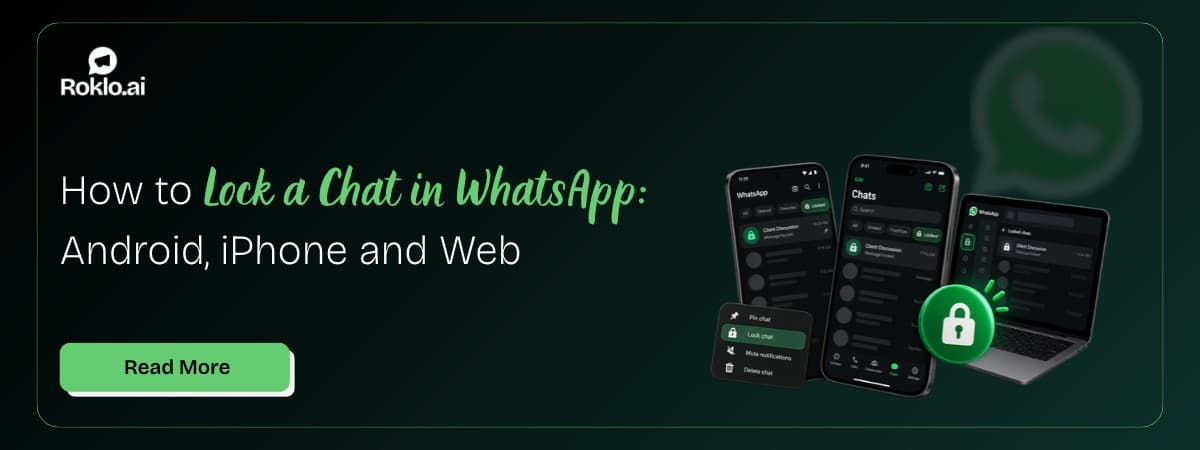
Oct 30, 2026How to Lock a Chat in WhatsApp: Android, iPhone and Web

Learn how to link WhatsApp to another phone using Companion Mode. Step-by-step for Android and iPhone, WhatsApp Web alternative, and linked device tips.

Kavya Shah
Content Marketing Manager
Contents
Contact us
Overview: WhatsApp lets you use the same account and phone number on multiple phones simultaneously using Companion Mode, officially called Linked Devices. The second phone works independently, receives all your messages, and stays active even when your primary phone is offline. This guide covers the exact steps for Android and iPhone, the WhatsApp Web alternative for temporary use, what linked phones can and cannot do, and how to remove devices when needed.
For businesses managing outbound WhatsApp campaigns from one account, a WhatsApp bulk message sender free tool handles those campaign sends separately from your device linking setup.
Before following any steps, confirm which outcome you actually need, the process is completely different.
| Mode | What it does |
Link (Companion Mode) | Use the SAME WhatsApp account on two or more phones simultaneously. Both phones receive all messages in real time. Your original phone keeps WhatsApp as normal. Use this when you want WhatsApp on a second phone you own. |
Transfer (Move to new phone) | Move WhatsApp (and optionally your chat history) from your old phone to a new phone. After transfer, the old phone no longer has WhatsApp active under that number. Use this when you are switching phones permanently. |
This guide covers linking, Companion Mode, where both phones remain active. If you are switching to a new primary phone, that is a transfer, not a link, and the process involves backup and restore instead of a QR code scan.
The companion phone is the second device you want to add. Your primary phone is the one already running your WhatsApp account.
On the companion (second) Android phone:
On your primary phone:
Syncing takes a few minutes depending on how many chats you have. Once complete, your companion Android phone shows your full WhatsApp chat list and is ready to send and receive messages.
Also Read: How to Create a Poll in WhatsApp: Android, iPhone and Web
On the companion iPhone:
On your primary phone (Android or iPhone):
Primary phone can be any platform: Your primary phone (the one already running WhatsApp) can be an Android or an iPhone. The companion phone can also be either. Cross-platform linking works, an Android primary linking to an iPhone companion and vice versa.
If you cannot install the WhatsApp app on the second phone (or only need temporary access), WhatsApp Web works in any mobile browser. The WhatsApp Web login guide covers the full setup. Here is the mobile-specific version for a second phone:
The browser session stays active even when your primary phone is offline (subject to the same 14-day rule), but the browser tab must remain open for notifications to work.
Also Read: WhatsApp Business Account Banned: Why and How to Avoid It
Feature | Companion Mode (App) | WhatsApp Web (Browser) |
App required | Yes, WhatsApp app installed on companion phone | No, uses any browser |
Interface | Full native app experience | Browser-based, less touch-optimized |
Notifications | Native push notifications | Browser tab must stay open for alerts |
Session persistence | Stays linked until manually removed or 14-day inactivity | Stays logged in (same 14-day rule), but browser sessions can timeout |
Works offline from primary | Yes, up to 14 days | Yes, same rule applies |
Best for | Permanent second phone you own | Temporary use on a borrowed or shared phone |
Downloading media | Yes, media downloads to device storage | Limited, depends on browser |
Recommendation: If the second phone is yours and you plan to use it regularly, install the WhatsApp app and use Companion Mode. If you are checking messages temporarily on a borrowed or shared phone, use WhatsApp Web and remember to log out when done.
Linked phones have almost all the functionality of your primary phone, with a few specific exceptions.
Linked Devices CAN Do | Linked Devices CANNOT Do |
Send and receive text messages Make and receive voice and video calls Send and receive media (photos, videos, documents) Read and reply to group chats View WhatsApp Status stories Access and search all chat history Work independently when primary phone is offline | Post or update WhatsApp Status Share live location Manage broadcast lists View the primary phone's linked devices list Keep working if primary phone is offline for over 14 days Access payment features in some regions Log out other linked devices |
Also Read: How to Enable Voice Typing in WhatsApp: Android and iPhone
WhatsApp automatically logs out all linked devices if your primary phone has not been online for 14 consecutive days. This is a security measure.
What this means in practice: If you leave your primary phone powered off for two weeks, say, during an international trip where you only use the companion phone, WhatsApp will log out the companion device. When you return and turn on your primary phone, you will need to scan the QR code again to re-link the companion.
For most users who pick up their primary phone at least once every two weeks, this rule never becomes an issue. But it is worth knowing if you intentionally keep your primary phone powered down for extended periods.
View all linked devices:
Remove a linked device:
You can only manage linked devices from your primary phone. A companion device cannot view or remove other linked devices.
If you lose a companion phone: Log it out remotely from your primary phone immediately using the steps above. If you also lose access to your primary phone, reinstall WhatsApp and verify your number, this automatically logs out all linked devices as a security measure.
Also Read: How to Know if Someone Blocked You on WhatsApp: 5 Signs
Linking WhatsApp to a second phone is secure by design, end-to-end encryption is maintained across all devices and each phone has its own encryption key. For broader account security practices, securing your WhatsApp business chats covers additional steps worth taking alongside linked device management.
Enable two-step verification: Go to Settings > Account > Two-Step Verification and set a 6-digit PIN. This adds an extra layer of security that prevents someone from linking your account to a new device without the PIN.
Review linked devices regularly: Check Settings > Linked Devices once a month. If you see a device you do not recognize or no longer use, remove it immediately.
Log out of shared or borrowed devices: If you use WhatsApp Web on a friend's phone or a public device, remove that session from your Linked Devices list as soon as you are done. Do not rely on the other person to log out for you.
Set up app lock on the companion phone: If the companion phone is accessible to others (family members, shared household), enable a screen lock or app lock for WhatsApp on that device so your conversations stay private.
QR code scan fails or times out: The QR code refreshes every 60 seconds for security. If the scan takes longer than that, a new code appears on the companion phone, just scan the new one. Make sure both phones have an active internet connection during the scan.
Cannot find "Link to Existing Account" option: Update WhatsApp on the companion phone from the Play Store (Android) or App Store (iPhone). The Companion Mode option requires a WhatsApp version from April 2023 or later. On older versions, this option does not appear.
Chats are not syncing after linking: The initial sync can take several minutes if you have a large chat history. Keep both phones connected to a Wi-Fi network and leave WhatsApp open on both during the sync. If syncing stops, close and reopen WhatsApp on the companion phone.
Companion phone keeps getting logged out: Check that your primary phone is connecting to WhatsApp at least once every 14 days. If you rarely use your primary phone, open WhatsApp on it briefly to reset the inactivity counter. Also confirm you have not reached the 4-device limit, check Settings > Linked Devices on your primary phone.
Maximum linked devices reached: WhatsApp allows a maximum of 4 companion devices. If you have reached the limit and need to add another, go to Settings > Linked Devices on your primary phone, remove one of the existing devices, and then link the new one.
Linking WhatsApp to a second phone through Companion Mode takes under two minutes and requires only a QR code scan between the two devices. The companion phone then works as a full WhatsApp device, receiving messages, making calls, and syncing in real time, even when your primary phone is offline, up to the 14-day inactivity limit.
For permanent second-phone use, install the WhatsApp app and link via Companion Mode. For temporary access on a borrowed phone, WhatsApp Web in a browser is faster and does not require installing anything. Manage your linked devices from Settings > Linked Devices on your primary phone and remove any device you no longer need.
For businesses managing outbound WhatsApp campaigns from one number across multiple team devices, Roklo is a free bulk message sender that handles how to send bulk WhatsApp messages to a full contact list from a browser, no API required, no saved contacts needed.
Also Read: WhatsApp Marketing Strategies: 10 Proven Tactics for 2026
Content Marketing Manager
Kavya Shah writes about AI, WhatsApp Business, marketing automation, CRM integrations, and customer communication. At Roklo.ai, she focuses on publishing actionable guides, product tutorials, and industry insights that help businesses streamline marketing and sales workflows.