WhatsApp Business Marketing
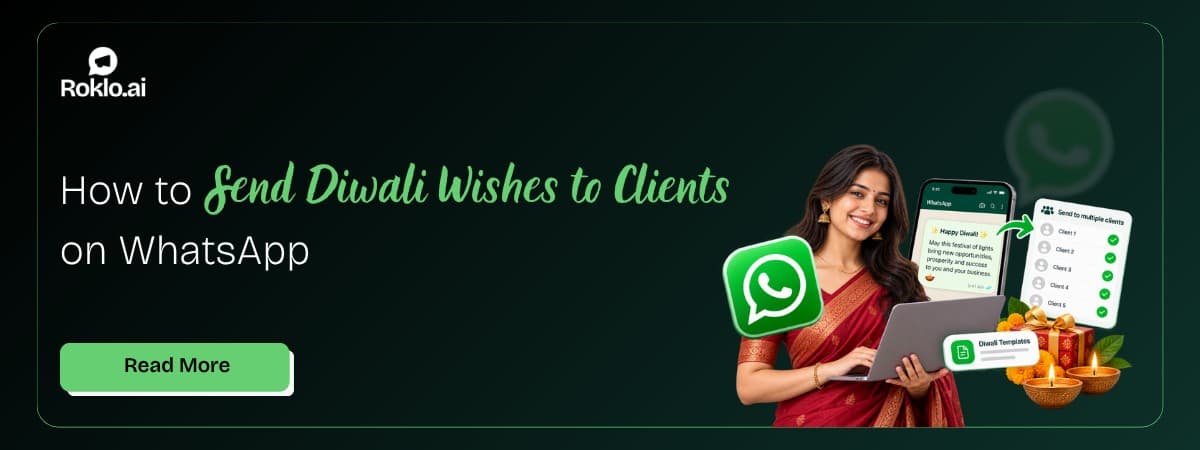
Oct 15, 2026How to Send Diwali Wishes to All Your Clients on WhatsApp (Without Copying One by One)

Learn how to use WhatsApp Channels for business: create a channel, post updates, grow followers, and see how channels compare to broadcasts and groups.

Arjun Mehta
Content Strategist at Roklo
Contents
Contact us
Overview: WhatsApp Channels for business let you broadcast updates to an unlimited number of followers from the Updates tab. Followers can read, react with emojis, vote in polls, and forward your posts, but they cannot reply. A channel works well for public announcements and audience growth. It does not work for personal, two-way, or name-personalised messages. This guide covers how to create a WhatsApp channel, what to post, how to grow followers, the real limitations, and when a broadcast or bulk campaign is the better tool.
Channels reach people who chose to follow you. To message your existing customer list individually, with each person's name in the message, a WhatsApp bulk message sender free tool handles that from your browser. This guide explains which tool fits which job.
Your goal | Best WhatsApp tool |
Announce news, launches, or tips to anyone who wants to follow your brand | WhatsApp Channel |
Let customers reply, ask questions, or talk to each other | Group or Community (two-way) |
Send one message to up to 256 saved contacts as private chats | Broadcast list |
Send a personalised message, with each name, to hundreds of existing customers | Bulk campaign tool |
Schedule a message for a future date and time | Bulk campaign tool (channels have no scheduler) |
WhatsApp Channels are a one-way broadcast feature that sits in the Updates tab, below Status. An admin posts updates, and anyone who follows the channel sees them. Followers can react with emojis, vote in polls, and forward posts to their own chats. They cannot reply in the channel or message the admin through it.
Privacy works in both directions. Followers cannot see each other, and admins cannot see followers' phone numbers. Your own phone number is also hidden from followers. That makes channels safe for open, public audiences in a way groups are not.
Channels support text, photos, videos, stickers, links, polls, and voice updates. Any WhatsApp or WhatsApp Business user can create one, with no WhatsApp Business API required.
Key point: A channel is a megaphone, not a conversation. If a customer needs to reply to you, the channel is the wrong place for that message.
Also Read: How to Share Screen on WhatsApp: Android, iPhone and Desktop
This is the decision most businesses get wrong. Each tool fits a different job.
Feature | Channel | Broadcast list | Group | Community |
Audience size | Unlimited followers | Up to 256 contacts | Up to 1,024 members | Multiple groups under one umbrella |
Who can reply | Nobody (reactions only) | Each person, privately | Everyone, in the group | Members, in sub-groups |
Personalised with name | No | No | No | No |
Needs your number saved | No (people follow you) | Yes | No | No |
Members see each other | No | No | Yes | Within groups |
Best for | Public updates and reach | Small known lists | Discussion and support | Organising many groups |
If you are choosing between two-way options for customers, this comparison of WhatsApp Communities vs Groups for business covers which structure scales better.
For sending to a small list of saved contacts as private chats, this guide on how to create a broadcast in WhatsApp walks through the setup on Android and iPhone.
You can create a WhatsApp channel from the WhatsApp or WhatsApp Business app, or from WhatsApp Web. Menu labels can differ slightly between app versions, so update WhatsApp first.
Open WhatsApp and tap the Updates tab.
Tap the + icon next to Channels, or the menu icon, then tap New channel / Create channel.
Tap Get started and follow the on-screen prompts.
Add a channel name. Use your business name so people can find you in search.
Add a description and an icon. Your logo works best.
Tap Create channel.
Result: your channel is live and ready for its first post.
Open WhatsApp and tap Updates at the bottom.
Tap the + icon next to Channels, then tap Create channel.
Tap Get started and continue through the prompts.
Enter a channel name, description, and icon.
Tap Create channel.
Result: the channel appears under Channels in your Updates tab.
Open web.whatsapp.com or the WhatsApp Desktop app.
Click the Channels icon in the left sidebar.
Click the + icon, then Create channel.
Click Continue, add a name, description, and icon.
Click Create channel.
Result: you can post and manage the channel from your computer.
Before you post: Write a clear description that says what followers will get and how often, for example "Weekly offers and new arrivals from [Business Name], every Friday." People follow channels that set expectations.
Also Read: Diwali Wishes Messages for Clients: 50+ WhatsApp Templates
Open your channel from the Updates tab.
Type your update in the message box at the bottom.
Attach a photo, video, sticker, link, or voice update, or create a poll from the attachment menu.
Tap Send. All followers can see the update in your channel.
You can edit a sent update for a limited time, and updates are stored for up to 30 days before they disappear from the channel. Followers do not get a notification for every post unless they turn on notifications for your channel, so the first line of each post needs to work on its own.
Once your channel workflow is set, you may still need to reach existing customers one to one. Roklo sends personalised campaigns from your browser to your full contact list, with each person's name in the message and scheduling built in. Channels cannot do either.
The full process for those individual sends is covered in this guide on how to send bulk WhatsApp messages.
Channels do not grow on their own. Nobody is added automatically, so every follower has to choose to join.
Share your channel link everywhere. Open the channel, tap its name, and tap Share to copy the link. Add it to your website, Instagram bio, email signature, and receipts.
Use a QR code in store. Print the channel QR code on counters, menus, packaging, and posters so walk-in customers can follow in seconds.
Invite existing customers in a chat. Send your customer list a short message with the channel link and one reason to join, such as early access to offers.
Make posts worth forwarding. Followers can forward your updates to their own chats, and each forward links back to your channel. Useful tips and genuine offers get forwarded. Pure ads do not.
Use a recognisable name. People find channels through search in the Updates tab. Your exact business name, not a slogan, is what they will type.
Also Read: Report a Contact on WhatsApp: Android, iPhone and Web (2026)
Business type | Post ideas |
Retail and D2C | New arrivals, restock alerts, festive offers, styling tips |
Restaurant | Daily specials, new menu items, festive hours, polls on next dish |
Coaching institute | Exam tips, schedule changes, result announcements, study resources |
Real estate | New project launches, price updates, site visit days |
Clinic or salon | Health or beauty tips, holiday hours, seasonal packages |
B2B services | Industry updates, case studies, webinar announcements |
A steady rhythm works better than bursts. Two to four posts a week keeps followers engaged without making them mute or unfollow.
Know these before you build your WhatsApp strategy around a channel.
No replies. Followers can react, vote, and forward, but cannot ask a question or place an order in the channel.
No personalisation. Every follower sees the same post. There is no way to add a customer's name or tailor a message to one segment.
No scheduling. Posts go out when you tap Send. There is no built-in way to schedule a channel update for later.
No API or automation. Channels are managed by hand in the app or on WhatsApp Web. You cannot connect them to a CRM or trigger posts automatically.
Basic insights only. You can see follower count and reactions, but not detailed delivery or click data per follower.
Updates expire. Posts are stored for up to 30 days, so a channel is not a permanent archive.
You cannot add followers. Growth depends entirely on people choosing to follow. You cannot import your customer list into a channel.
Rule of thumb: Use a channel to reach people who want to hear from your brand. Use direct, personalised messages for customers you already have a relationship with.
Also Read: WhatsApp Business Download: Android, iPhone and PC (2026)
Add admins: open the channel, tap its name, and use the admin option to invite team members, so more than one person can post.
Get a verified badge: channels can show a green or blue verified tick through Meta's verification. This builds trust and helps people pick the real brand in search results.
Delete a channel: open the channel, tap its name, scroll down, and tap Delete channel. Deletion removes the channel for all followers and cannot be undone.
Update WhatsApp. Channels need a recent app version. Update from the Play Store or App Store and restart the app.
Check your region. Channel creation has rolled out country by country. If the option is missing on an updated app, it may not be available on your account yet.
Look in the right place. The option is in the Updates tab, next to Channels, not in Chats or Settings.
Use WhatsApp Web. If the mobile app still does not show it, try creating the channel from WhatsApp Web or Desktop.
WhatsApp Channels give businesses a free, private way to reach anyone who wants to follow their brand, with no cap on followers and no phone numbers exposed. They are built for announcements, launches, tips, and offers that every follower should see.
The trade-off is that a channel cannot reply, personalise, or schedule. The strongest WhatsApp setups use a channel for public reach and direct messages for existing customers, each doing the job it is good at.
For the direct side, Roklo works as a free bulk message sender that delivers personalised, scheduled campaigns to your customer list from your browser.
Also Read: WhatsApp Interactive Messages: Buttons, Lists and CTA Guide
Content Strategist at Roklo
Arjun is a content strategist with a passion for demystifying technology and helping businesses grow with smart digital solutions. At Roklo, he crafts in-depth guides, tutorials, and industry insights to empower readers and drive meaningful results. With a background in digital marketing and years of experience in content creation, Arjun specializes in SEO, branding, and SaaS. He believes in clear communication, practical advice, and staying ahead of the curve.