
Whatsapp Guides
Oct 28, 2026WhatsApp Status Privacy: Who Sees It and How to Control It

Learn how to change, restore, and customize the WhatsApp chat default background in 2026. Follow simple steps for Android and iPhone to personalize your chats.

Kartik Patel
Head of Delivery
Contents
Contact us
Overview: WhatsApp's default chat background is a light cream-coloured pattern filled with small doodles — rockets, monkeys, squiggles, and similar icons. It appears across all your chats until you change it. You can replace it with any image from your phone gallery, a solid colour, or a WhatsApp preset. You can also set a different background for a single chat without affecting the rest. This guide covers how to change the WhatsApp chat default background on Android and iPhone, how to restore it, how to customise for dark mode, how to use the new chat theme feature, and what the wallpaper categories include.
The WhatsApp chat default background has not changed much since the app launched — it is still the same familiar off-white doodle pattern most people recognise. Whether you want to replace it with something more personal, set a specific background for one contact, or just restore it after someone changed it on your phone, the process takes under a minute. For businesses that want to go beyond personalising the look of WhatsApp and also personalise what they send, a WhatsApp bulk message sender free tool like Roklo handles personalised bulk campaigns. But first, the background settings.
The WhatsApp chat default background is the wallpaper you see behind all your messages when you open any chat. Out of the box, WhatsApp uses a light cream or off-white pattern filled with small hand-drawn style doodles — tiny rockets, monkeys, squiggles, planets, and similar icons. This is the same background that has shipped with WhatsApp for years and that most users would recognise instantly.
A few important things to understand about this background:
In short: The WhatsApp default chat background is the cream doodle pattern you see in all chats. Only you can see it. Changing it takes under a minute and affects only your device.
These steps change the wallpaper for every chat at once. If you only want to change one specific chat, skip to the next section.
Tap Set Wallpaper to confirm.
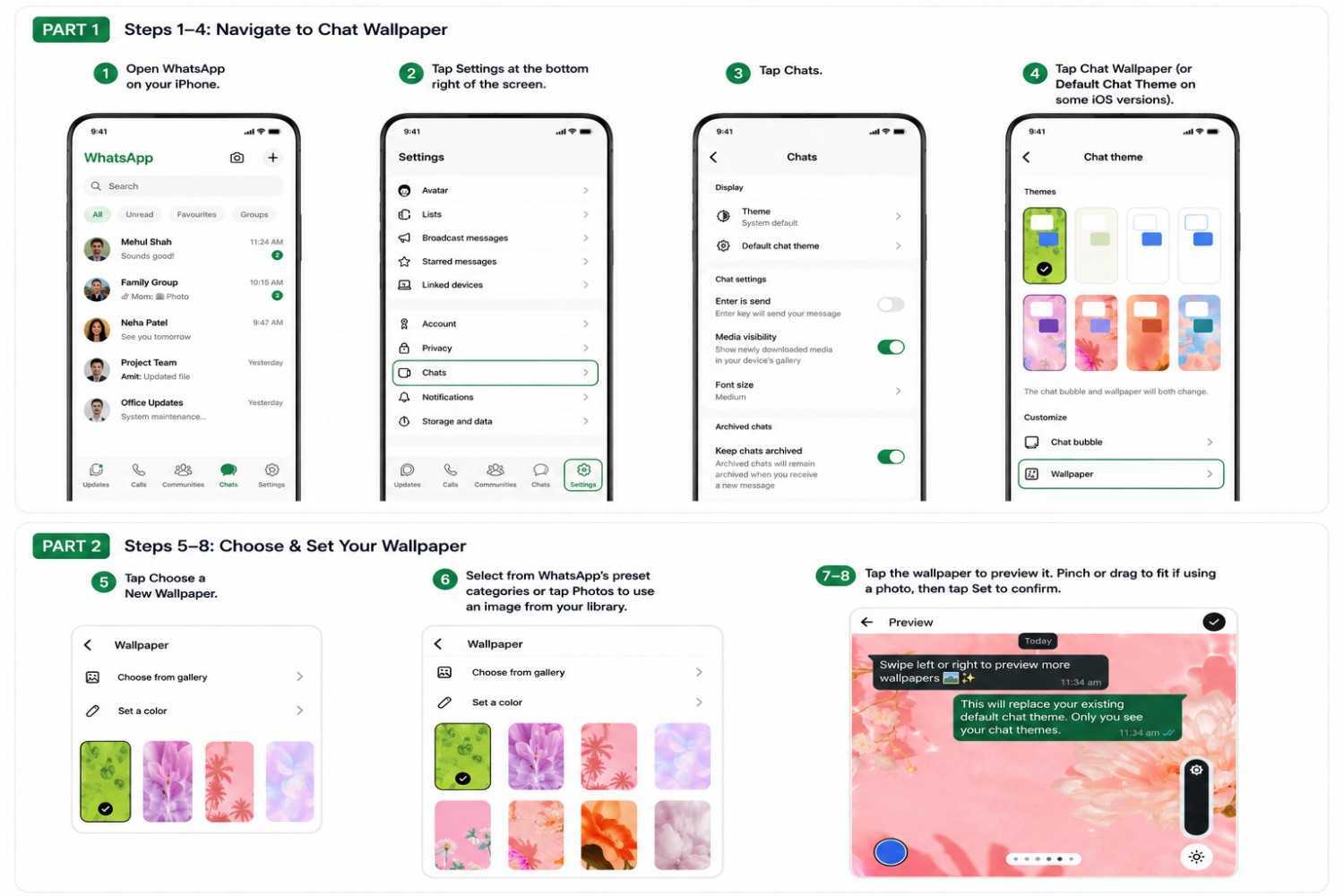
Note: On some Android versions, the path goes through Settings > Chats > Default Chat Theme > Wallpaper. The end result is identical. If you do not see a Wallpaper option directly, look for Default Chat Theme first.
Tip: Android lets you toggle between light and dark mode wallpaper settings directly within the wallpaper screen. Look for the Light and Dark tabs at the top of the wallpaper picker to set both in one session without going back and forth.The iPhone path is slightly different because WhatsApp on iOS uses a bottom navigation bar with a Settings icon rather than a three-dot menu.
Tap Set to confirm.
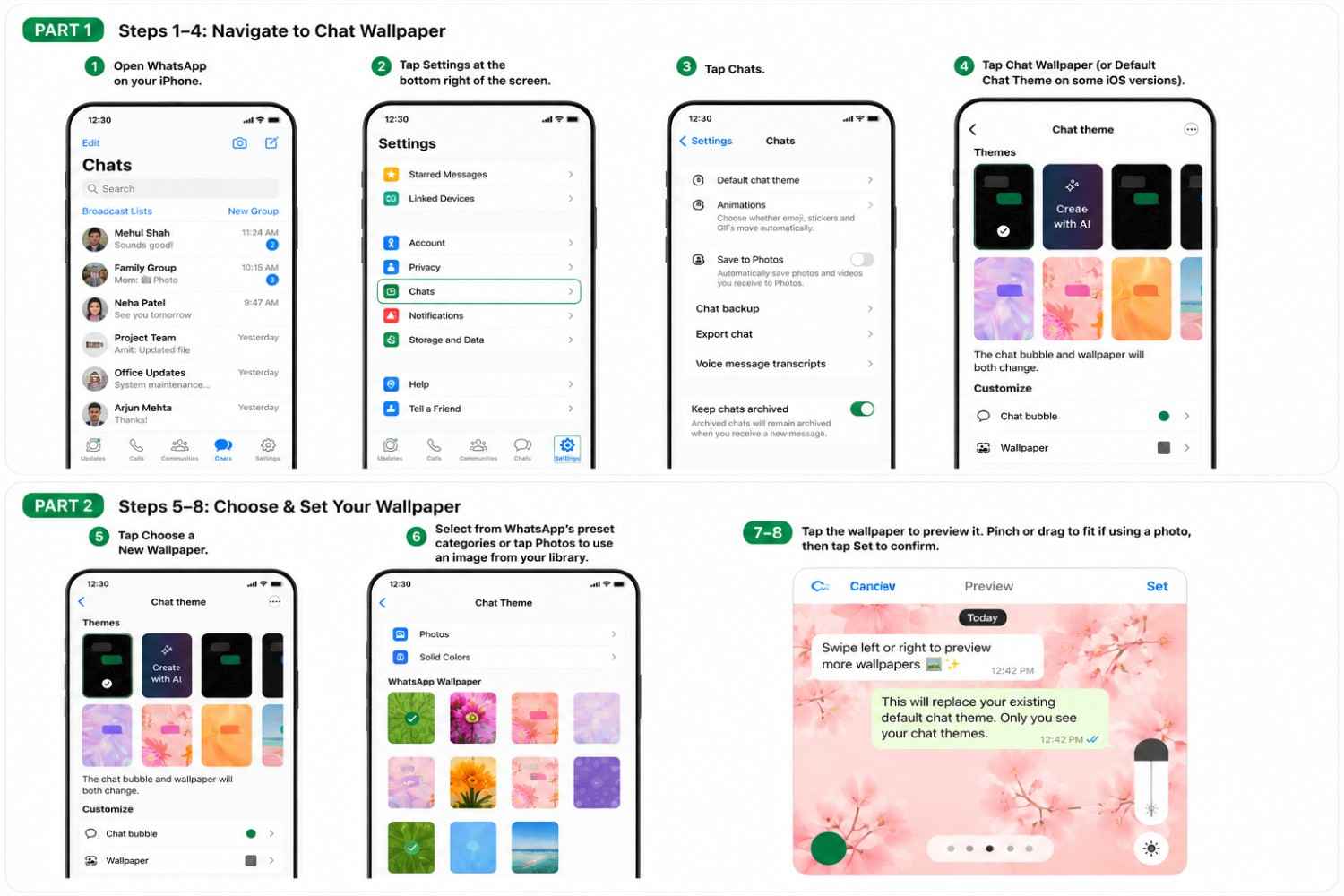
Dark mode on iPhone: WhatsApp on iPhone sets wallpapers independently for light and dark mode. After setting your wallpaper in light mode, switch your iPhone to dark mode (Settings > Display and Brightness > Dark, or use Control Centre) and repeat the steps to set a separate dark mode wallpaper. Use the brightness slider in the wallpaper picker to dim darker images for better contrast.In short: Android: three dots, Settings, Chats, Wallpaper, Change. iPhone: Settings at bottom, Chats, Chat Wallpaper, Choose a New Wallpaper. Both take under a minute.
Also Read: WhatsApp Business API: Complete Beginner's Guide + Pricing 2026
WhatsApp lets you set a unique background for any individual contact or group without affecting your global wallpaper. This is useful for separating work conversations from personal ones, identifying important contacts at a glance, or personalising a specific group.
Tip: To remove a custom background from one chat and go back to your global wallpaper, open the same wallpaper settings for that chat and tap Remove or Reset to Default. This restores the chat to use your global setting without affecting other chats.
Wallpaper and Sound: On iPhone, the Wallpaper and Sound option in a specific chat also lets you set a custom notification sound for that contact or group. You can personalise both in the same screen.In short: For a single chat: open the chat, tap the name at the top, find the Wallpaper option, choose and set. This overrides only that chat. Your global wallpaper continues to apply to all others.
If someone changed your WhatsApp background or you want to go back to the original cream doodle pattern, the restore option is built into the same wallpaper settings screen.
For individual chats: To restore the default in a specific chat rather than globally: open that chat, tap the name at the top, go to the wallpaper option, and tap Default Wallpaper or Remove to clear the custom setting and return to your global wallpaper.
Also Read: WhatsApp Login & Setup Guide 2026: Step-by-Step Tutorial Complete
When you open the WhatsApp wallpaper picker, you will see several categories of built-in options alongside the ability to use your own photos. Here is what each includes:
Category | What It Includes | Best For |
Bright | Light-coloured patterns, pastel tones, soft textures | Daytime use, light mode, cheerful personal chats |
Dark | Deep-toned backgrounds, muted patterns | Dark mode, night use, reduced eye strain |
Solid Colors | Single-colour backgrounds with no pattern | Minimal look, professional chats, easy readability |
My Photos | Any image from your phone gallery | Personalised look, brand logo, family photos, custom art |
Wallpaper Archive | Older WhatsApp wallpapers no longer in the main gallery | Classic WhatsApp looks from previous versions |
Tip: The Wallpaper Archive section, found at the bottom of the Bright or Dark category list on some devices, contains older WhatsApp wallpapers from previous app versions. If you remember a specific classic WhatsApp look from years ago and want it back, check the Archive first.
WhatsApp allows you to set separate wallpapers for light mode and dark mode. This matters because a bright, high-contrast wallpaper that looks good during the day can look harsh or difficult to read in dark mode at night.
Android: when you are in the wallpaper picker, look for a Light and Dark toggle or tab at the top of the screen. Select Light, choose your daytime wallpaper and set it, then switch to Dark and choose your night wallpaper and set it separately.
iPhone: set your wallpaper in your current mode first. Then switch your iPhone to the other mode (Settings > Display and Brightness > Dark or Light, or use Control Centre) and repeat the wallpaper selection process for that mode.
When you select a wallpaper in dark mode, WhatsApp shows a brightness slider. This dims or lightens the background without changing the image itself. If your chosen image is dark and the message text is hard to read against it, slide the brightness up. If the image is too bright for dark mode viewing, slide it down.
Tip: If you want the same wallpaper in both light and dark mode, you will need to set it twice — once in each mode. WhatsApp does not automatically apply one setting to both.
Also Read: 17 Best Practices and Tips for Using a WhatsApp Bulk Messaging Tool in 2026
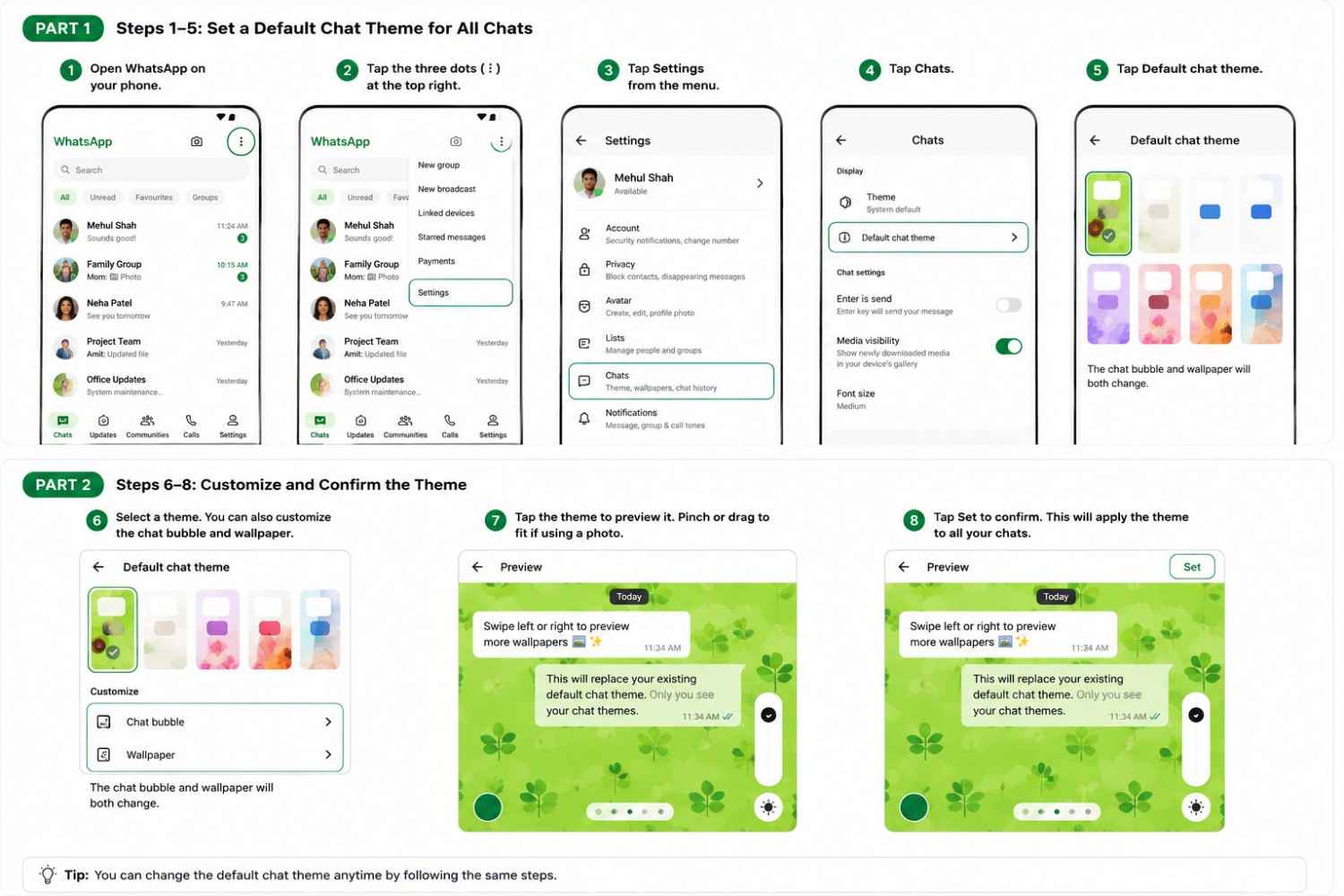
WhatsApp introduced a chat theme feature in 2025 and expanded it further in 2026. A theme goes beyond a wallpaper by changing both the background and the chat bubble colours together as a coordinated set. When you apply a theme, your sent and received message bubbles change colour to match the background.
Where to find themes:
Themes vs Wallpaper: Setting a theme overrides both your wallpaper and your bubble colours as a coordinated pair. If you want a custom wallpaper without changing your bubble colours, use the Wallpaper option, not the Theme option. You can switch back to a theme at any time.
Yes. WhatsApp Web lets you set a custom chat wallpaper directly from the browser — you're not stuck with the default grey background.
Here's how:
Note: Unlike the mobile app, where you can set a different wallpaper per chat, WhatsApp Web applies one wallpaper across all your conversations at once.
For a full guide to using WhatsApp Web including linking your account, the phone-number login method, and what settings do carry over from your phone, the complete walkthrough is in WhatsApp login and setup guide 2026.
For businesses managing customer communication on WhatsApp, personalising your chat background is a small but visible part of your WhatsApp experience. If you also want to personalise what you send, not just how your app looks, sending personalised bulk WhatsApp messages with the {{name}} variable means every customer receives their own version of a message rather than a generic broadcast. Roklo handles this from your browser without API approval, and the setup takes under two minutes.
Also Read: WhatsApp Username Feature Test 2026: How to Check Access (Android & iPhone)
The WhatsApp chat default background is the cream doodle pattern that ships with every account. Changing it takes under a minute on both Android and iPhone. You can set one background for all chats globally, override it for a single contact or group, or restore the original at any time using the Default Wallpaper option.
The 2026 chat theme update adds coordinated bubble colour plus background combinations that go beyond simple wallpapers. Dark mode wallpapers can be set independently from light mode ones, with a brightness slider to tune contrast. WhatsApp Web has no wallpaper setting and uses a fixed background that cannot be changed.
For personalising both how your chats look and what your messages say, Roklo is a free bulk message sender that sends personalised WhatsApp messages to your full contact list from your browser. No API, no per-message fee, and no credit card required.
Roklo is free to use. Send bulk WhatsApp messages with {{name}} personalisation to every contact individually, schedule campaigns, and track delivery from your browser. No API approval. No per-message fee. No saved contacts required.
Head of Delivery
Kartik Patel is the Head of Delivery at Roklo, specializing in scaling AI solutions and leading high-performing engineering teams to deliver impactful digital transformations.