Whatsapp Guides
Oct 28, 2026WhatsApp Status Privacy: Who Sees It and How to Control It

Learn how to change WhatsApp keyboard theme on Android and iPhone in 2026. Follow simple steps to customize your keyboard with dark mode, colors, themes, and backgrounds.

Kartik Patel
Head of Delivery
Contents
Contact us
Overview: WhatsApp does not have a built-in keyboard theme setting. The keyboard you see in WhatsApp is controlled by your phone's operating system and the keyboard app you have installed — not by WhatsApp itself. To change the WhatsApp keyboard theme, you change the theme inside your keyboard app: Gboard, SwiftKey, or Samsung Keyboard on Android, or Gboard and SwiftKey on iPhone. This guide covers step-by-step instructions for each keyboard app, how to switch your active keyboard inside WhatsApp, how to get a dark keyboard, a comparison table of keyboard apps and their theme options, troubleshooting, and privacy considerations for third-party keyboard apps.
If you searched for how to change the WhatsApp keyboard theme and expected to find a setting inside WhatsApp, that setting does not exist. WhatsApp uses whatever keyboard your phone has set as the default. To get a dark keyboard, a coloured background, or a custom theme while typing in WhatsApp, you change it in your keyboard app itself. The steps below cover exactly how to do that for every common keyboard on Android and iPhone. For businesses that want to go beyond personalising how their keyboard looks and also personalise what they send, a WhatsApp bulk message sender free tool like Roklo handles that separately. But first, the keyboard steps.
WhatsApp is a messaging app, not a keyboard app. It does not control the keyboard that appears when you type — that is entirely managed by your phone's operating system. On Android, your system keyboard might be Gboard (default on many Android phones), SwiftKey (default on some Huawei and Samsung phones), or Samsung Keyboard (on Galaxy devices). On iPhone, it is Apple's default keyboard unless you install a third-party option.
When you open WhatsApp and tap to type, the keyboard that appears is exactly the same keyboard that appears in every other app on your phone. To change its theme, colour, or appearance, you go to that keyboard app's own settings — not to WhatsApp.
WhatsApp uses your phone's system keyboard. The theme you set in Gboard, SwiftKey, or Samsung Keyboard will appear in WhatsApp automatically, because WhatsApp and every other app on your phone share the same keyboard.
Before changing your keyboard theme, confirm which keyboard app you are using. This determines which steps apply to you.
Keyboard | Platform | Theme Options | Best For |
Gboard | Android and iPhone | Preset themes, solid colours, landscape photos, custom photos | Most Android users — comes pre-installed on many devices |
Microsoft SwiftKey | Android and iPhone | 100+ preset themes, custom photo backgrounds, colour tints | Deep theme customisation and smart prediction |
Samsung Keyboard | Samsung Android only | Preset themes, colour options, size adjustment | Galaxy phone users who want native integration |
Apple Default Keyboard | iPhone only | No theme customisation — follows system dark/light mode only | Users who want minimal setup without installing anything |
Fleksy | Android and iPhone | Many preset themes with colourful backgrounds | Users who want bold colours and visual variety |
To check which keyboard is currently active on Android: go to Settings, search for Keyboard or Language and Input, and look at the current keyboard app. On iPhone: go to Settings, General, Keyboard, Keyboards, and check the list.
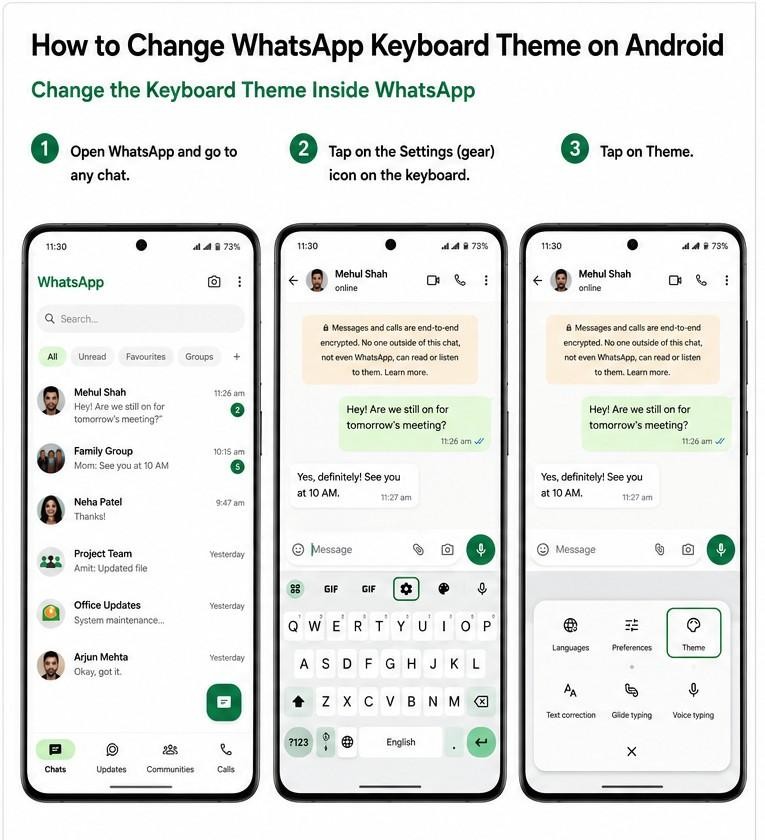
Gboard is Google's keyboard, pre-installed on most Android phones. It offers preset themes including solid colours, landscapes, and the ability to use any photo from your gallery as the keyboard background.
Tap a theme to preview it, then tap Apply.
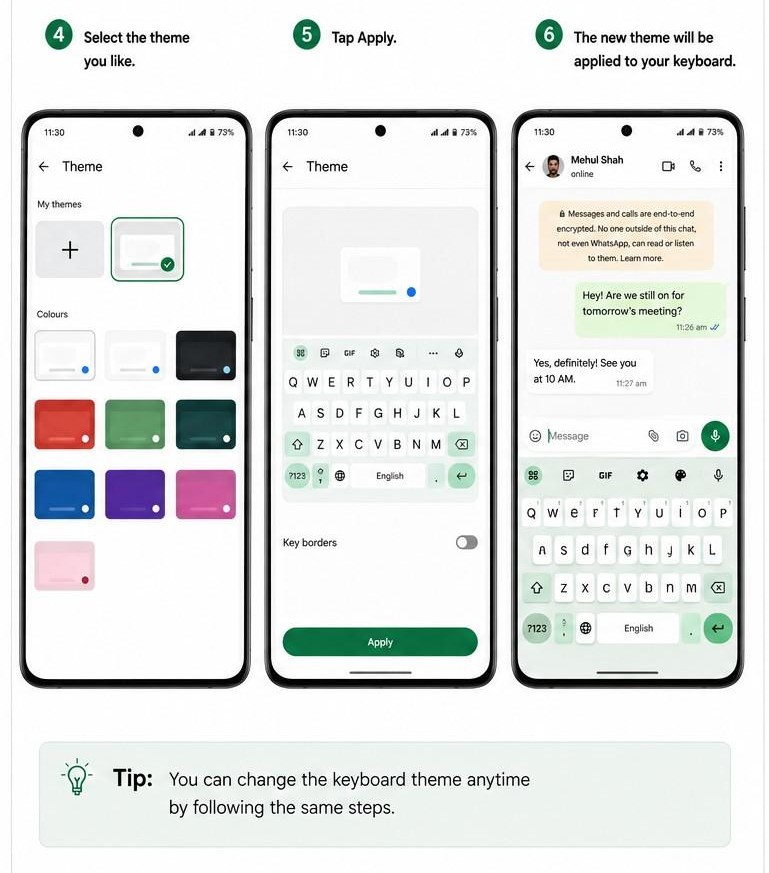
Using a custom photo: To use your own photo as the Gboard background: tap the plus icon or Add Yours option in the theme picker. Select a photo from your gallery. Use the brightness slider to dim or lighten the image so key labels remain readable against it. Tap Apply.
Tip: For a dark Gboard theme in WhatsApp: choose a dark preset from Gboard's theme options. Then enable WhatsApp's dark mode (Settings inside WhatsApp > Chats > Theme > Dark) so the chat background also goes dark and the whole experience is consistent.
In short: Gboard theme: tap the gear icon on the keyboard, tap Theme, browse and apply. Or go through Android Settings > Virtual keyboard > Gboard > Theme.Also Read: How to Introduce Yourself on WhatsApp: Templates (2026) | Roklo
Microsoft SwiftKey offers over 100 preset themes plus the ability to use custom colours and photos. It is the default keyboard on some Huawei phones and is widely used as an alternative to Gboard on any Android device.
From the keyboard directly: You can also access SwiftKey themes from the keyboard itself. When SwiftKey is open in WhatsApp, tap the SwiftKey logo or settings icon at the top of the keyboard bar, then tap Themes. This is faster than opening the app separately.
Tip: If a SwiftKey theme shows a download icon instead of loading, tap it to download. Some themes in the Gallery are not pre-loaded and need a one-time download before they can be applied.
In short: SwiftKey theme: open the SwiftKey app, tap Themes, choose from Gallery or Custom, tap Select. Or access it from the SwiftKey icon on the keyboard bar inside WhatsApp.Samsung Keyboard is the built-in keyboard on Galaxy phones. Theme options vary by Galaxy model and One UI version, but the general path is consistent.
Alternatively, go through phone Settings:
Samsung keyboard limitations: Samsung Keyboard theme options are more limited than Gboard or SwiftKey. If you want extensive customisation including custom photo backgrounds, installing Gboard or SwiftKey from the Play Store and setting it as your default keyboard gives you significantly more theme choices on Galaxy devices.
Apple's built-in iPhone keyboard has no theme customisation option. It follows system dark mode or light mode only. To get a custom keyboard theme in WhatsApp on iPhone, you need to install a third-party keyboard app like Gboard or SwiftKey, enable it, and switch to it while typing in WhatsApp.
Open the App Store and download one of these keyboard apps:
Warning: Allow Full Access on iPhone sends your typing data to the keyboard app's developer servers, including anything you type in WhatsApp. Only enable Full Access for keyboard apps from trusted developers (Google, Microsoft). Avoid enabling it for unknown or low-review keyboard apps.
The keyboard switches immediately. The theme you set in that keyboard app now appears.
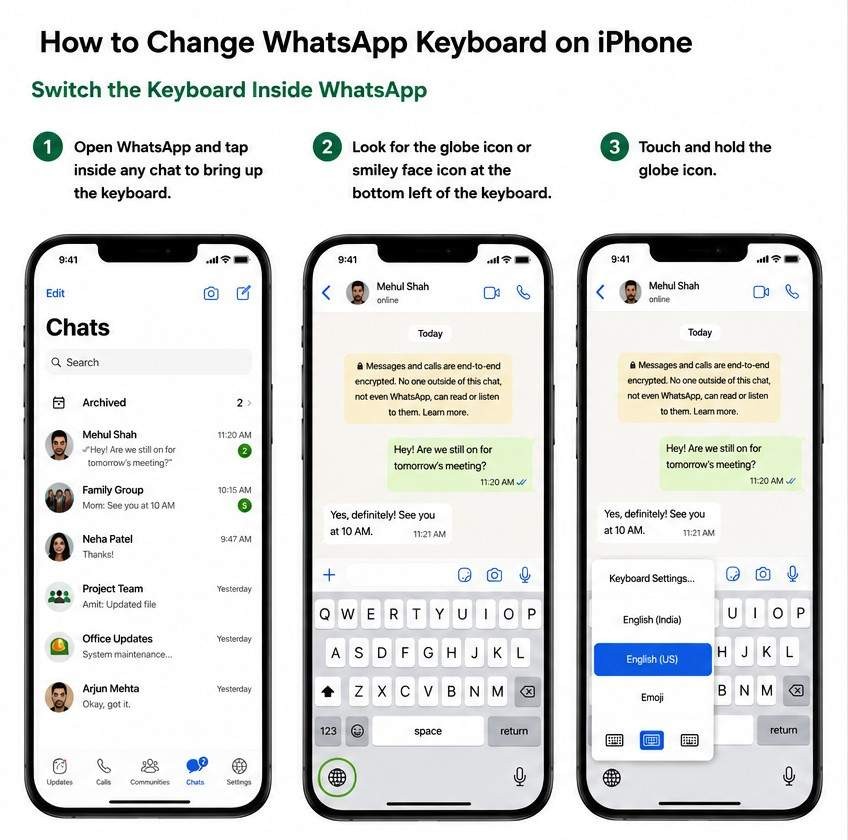
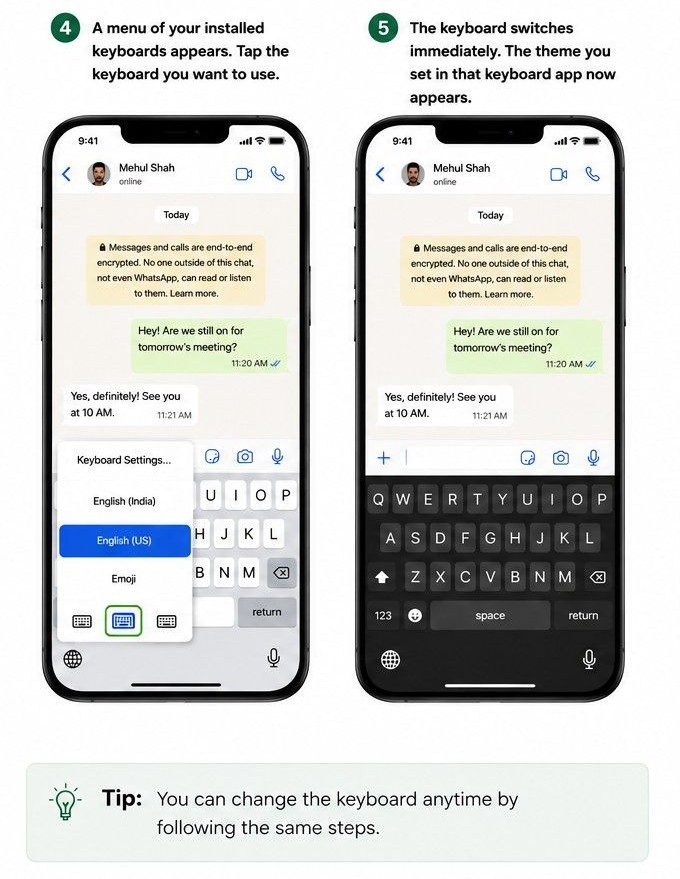
For Gboard on iPhone:
For SwiftKey on iPhone:
Once the theme is applied in the keyboard app, it appears automatically the next time you use that keyboard in WhatsApp.
In short: iPhone path: install Gboard or SwiftKey from App Store, add it in Settings > General > Keyboard > Keyboards, switch to it via globe icon in WhatsApp, then set the theme inside the keyboard app itself.
Also Read: Top 10 WhatsApp Group Names: Best WhatsApp Group Names (2026)
A dark keyboard combined with WhatsApp's dark mode gives the most comfortable night-time typing experience. There are three ways to achieve this:
Enabling dark mode at the system level automatically applies a dark theme to all supported keyboards, including Gboard, SwiftKey, Samsung Keyboard, and Apple's default keyboard on iPhone. No keyboard-specific steps needed.
Android: Settings > Display > Dark theme or Dark mode. Toggle on.
iPhone: Settings > Display and Brightness > Dark. Or swipe down from the top right to open Control Centre and tap the dark mode toggle.
In Gboard: open Theme settings and select a dark preset (labelled Dark or choose a solid dark colour).
In SwiftKey: open Themes and choose any dark theme from the Gallery. Many are specifically labelled for dark use.
This option lets you use a dark keyboard even when your phone is in light mode.
To make the entire WhatsApp experience dark — not just the keyboard — enable dark mode inside WhatsApp itself:
Tip: For the best dark mode experience in WhatsApp, enable both system dark mode and WhatsApp dark mode. Then set a dark theme in your keyboard app. The chat background, message bubbles, and keyboard all become dark and consistent.
The most common issue after changing a keyboard theme is that WhatsApp still shows the old keyboard. This table covers every common cause and fix.
Problem | Cause | Fix |
Keyboard theme is not showing in WhatsApp | The keyboard whose theme you changed is not the active keyboard in WhatsApp | Switch your active keyboard to the one you themed (globe icon or hold globe to choose). Confirm the right keyboard is selected. |
No theme option found in Gboard | Gboard app may be outdated | Update Gboard via Play Store or App Store. The Theme option is in Gboard settings (gear icon or via Settings > Apps > Gboard > Keyboard > Theme). |
SwiftKey themes missing | Themes may need to be re-downloaded | Open SwiftKey app, go to Themes, check the Gallery, Yours, and Custom tabs. Re-download any theme showing a download icon. |
Custom keyboard not showing inside WhatsApp on iPhone | Keyboard not enabled or not set as active inside the chat | Go to Settings > General > Keyboard > Keyboards and confirm the keyboard is listed. In WhatsApp, hold the globe icon and select the keyboard. |
Theme reverts after restart | Some keyboard apps lose theme on restart with certain Android versions | Re-apply the theme and check whether Force Stop and reopen the keyboard app helps. Check for keyboard app updates. |
Dark keyboard still looks bright | WhatsApp chat itself is still in light mode | Enable dark mode in WhatsApp via Settings > Chats > Theme > Dark, or enable system dark mode to apply it globally including WhatsApp. |
Third-party keyboard apps have access to everything you type, including messages, passwords, bank details, and personal conversations. This is not unique to any single app — it is a fundamental requirement of how keyboards work. The keyboard must see your keystrokes to function.
For other WhatsApp account security settings including two-step verification, linked device management, and privacy controls, how to secure your WhatsApp Business chats covers the complete set of settings relevant to both personal and business accounts.
For businesses that want to personalise what they send through WhatsApp, not just how the keyboard looks, sending personalised bulk WhatsApp messages with the {{name}} variable means every customer on your list receives their own version of a message. Roklo handles this from your browser in under two minutes, with no API approval or per-message charge.
WhatsApp does not have its own keyboard theme setting. To change the keyboard theme in WhatsApp, you change it in your keyboard app — Gboard, SwiftKey, Samsung Keyboard, or a third-party app on iPhone. The steps take under two minutes and the theme applies immediately the next time you type in any app, including WhatsApp.
For a dark keyboard, the fastest method is enabling system dark mode on your phone. This automatically applies dark styling to all supported keyboards without any keyboard-specific configuration. Pairing system dark mode with WhatsApp's own dark mode setting gives the most complete dark experience.
For personalising both how WhatsApp looks to you and what your messages say to others, combining a custom keyboard theme with Roklo's Free WhatsApp Bulk Message Sender for Indian Businesses covers both sides. The keyboard is what you see when you type. Roklo handles what your contacts see when you send.
Also Read: WhatsApp Chat Default Background: Change & Restore (2026)
Head of Delivery
Kartik Patel is the Head of Delivery at Roklo, specializing in scaling AI solutions and leading high-performing engineering teams to deliver impactful digital transformations.