Whatsapp Guides
Oct 30, 2026How to Lock a Chat in WhatsApp: Android, iPhone and Web

Learn how to unarchive a chat in WhatsApp on Android, iPhone, and Web. Covers deleting archived chats, hiding without archive, and Archive vs Chat Lock vs Mute.

Kavya Shah
Content Marketing Manager
Contents
Contact us
Overview: WhatsApp archive is not the only way to manage inbox clutter, and unarchiving is not always the right next action. This guide covers how to unarchive a chat on Android, iPhone, and WhatsApp Web, why archived chats return to the main list automatically and how to stop it, how to permanently delete an archived chat you no longer need, and how to hide a WhatsApp chat without using archive at all. It also includes a direct comparison of Archive, Chat Lock, and Mute so you can choose the right approach for your situation, and answers whether archived chats are included in your WhatsApp backup.
Archiving, deleting, and locking are three separate inbox management functions. For outbound communication to a contact list that extends beyond your existing WhatsApp chats, a WhatsApp bulk message sender free tool handles that from your browser independently of how your inbox is organised. This guide covers inbox management and archived chat actions only.
The Archived folder sits inside the Chats tab on all platforms. Open it, locate the chat, and follow the steps for your device. The chat returns to your main conversation list immediately after unarchiving, sorted by the most recent message.
If you are not yet logged in, see our guide on WhatsApp Web login before following the steps above.
Tip: On Android, you can also unarchive by opening the archived chat, sending a new message, and exiting. The chat re-enters the main list at the top. This is the fastest method when you just want to bring a specific conversation back quickly.
Also Read: 100+ Best WhatsApp About Lines for Every Mood (2026)
This is the most common frustration with WhatsApp archive. You tidy your inbox by archiving a contact, they send a new message, and the chat is back at the top of your main list as if nothing happened.
This is WhatsApp's default behaviour. When the Keep Chats Archived setting is off, any incoming message in an archived chat moves it back to the main list automatically. You never unarchived it -- WhatsApp did, on your behalf, the moment the message arrived.
If your archived chat keeps reappearing, the fix is not to re-archive it. The fix is to turn on Keep Chats Archived in Settings > Chats.
Android: Tap the three-dot menu > Settings > Chats > toggle on Keep chats archived.
iPhone: Settings > Chats > toggle on Keep chats archived.
With this setting on, archived chats stay in the Archived folder regardless of new messages. Notifications still arrive normally. The chat just does not move back to your main list until you unarchive it manually.
Deleting removes the chat and all its messages permanently from your device. The other person's copy of the conversation is not affected. You can delete directly from the Archived folder without unarchiving first.
Permanent action: Deleted chats cannot be recovered unless a recent backup exists. If you might need the chat history in future, archive it rather than delete it. Archiving is reversible. Deletion is not.
Deleting on Web vs phone: Deleting a chat on WhatsApp Web removes it from that Web session only, not from your phone, unless linked device sync completes. To be certain the chat is gone everywhere, delete it directly from your phone.
Also Read: How to Fix WhatsApp Images Not Showing in Gallery (9 Easy Fixes)
Archive moves a chat out of the main list, but it offers no protection. Anyone with access to your phone can tap the Archived folder and read every message inside. It is an organisation tool, not a privacy tool.
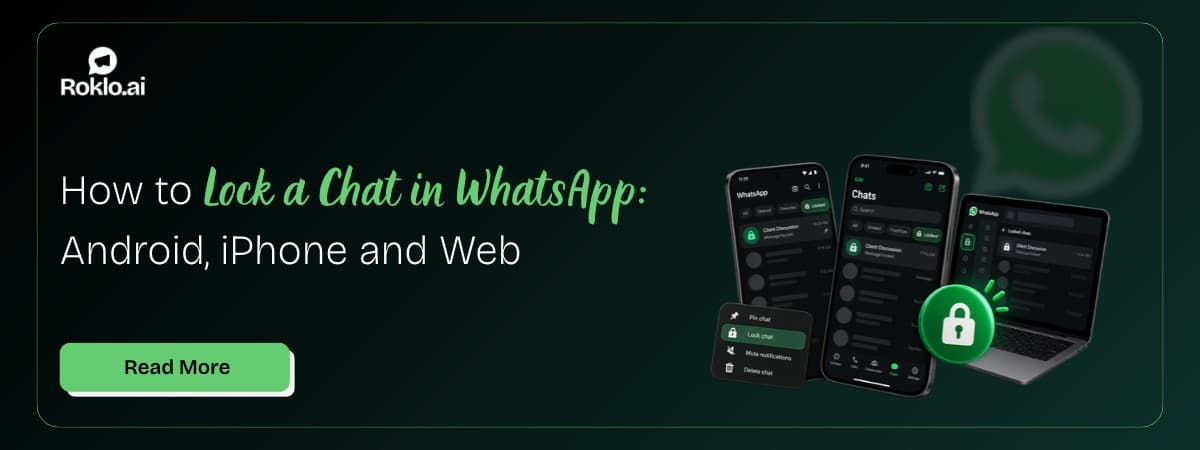
WhatsApp's Chat Lock feature addresses this. It moves a chat to a separate Locked Chats folder that requires biometric authentication to open. Combined with a Secret Code and the Hide Locked Chats setting, the folder itself becomes invisible and can only be accessed by someone who knows the code. Nothing is deleted and no messages are lost.
Step 1 -- Lock the chat:
Step 2 -- Set a Secret Code:
Step 3 -- Make the folder invisible:
Also Read: How to See Archive Chat in WhatsApp: Android, iPhone and Web
Notifications from locked chats: New messages in locked chats still generate notifications, but no sender name or message preview is shown. Other people using your phone see only a generic notification with no identifying information.
Chat Lock is part of WhatsApp's broader privacy controls. For a full guide on securing business conversations and account settings, see our guide on how to secure your WhatsApp business chats.
Muting does not hide the chat but removes it as a source of attention. The conversation stays in the main list and is visible to anyone, but generates no sound, vibration, or banner when new messages arrive.
Best for: reducing distraction from low-priority chats when privacy is not the concern. Not a substitute for Chat Lock when the goal is preventing others from reading the conversation.
All three options manage how a chat appears and behaves in your WhatsApp, but they serve different purposes. The right choice depends on what you are actually trying to achieve.
Feature | Archive | Chat Lock | Mute |
Hides from main list | Yes | Yes | No |
Password protected | No | Yes (biometric or code) | No |
Visible to others on your phone | Yes (open Archived folder) | Only with authentication | Yes (still in main list) |
Notifications | Normal (or silenced by mute) | Arrives, no preview or name shown | Off |
Messages still received | Yes | Yes | Yes |
Backed up in WhatsApp backup | Yes | Yes | Yes |
Best for | Decluttering inbox | Privacy and security | Reducing distraction |
Rule: Use Archive to reduce inbox clutter. Use Chat Lock when you need the chat hidden from anyone who picks up your phone. Use Mute when you want the chat accessible but silent.
Also Read: How to Highlight in WhatsApp: Words, Text, and Colour (2026)
Yes. Archived chats are fully included in WhatsApp's automatic backup. On Android, this goes to Google Drive. On iPhone, it goes to iCloud. When you restore WhatsApp from a backup on a new device, archived chats restore to the Archived folder with their archived status intact.
Two things worth knowing before you delete rather than archive:
Archiving is always the safer option when you are unsure. It costs no storage space, hides the chat from your main list, and is fully recoverable from any backup.
Unarchiving, deleting, and hiding archived chats are three separate actions that serve three different goals. Unarchiving brings a conversation back to your active list in two taps. Deleting removes it permanently from your device when you are certain you no longer need it. Chat Lock, combined with a Secret Code and Hide Locked Chats, removes a chat from view entirely without deleting a single message.
The Keep Chats Archived setting is the fix that most users need but do not know exists. If archived chats keep returning to your main list every time someone messages you, turning this on resolves the problem immediately without any other change to how your inbox works.
If your inbox management goal is to keep client conversations organised while also reaching a larger contact list with outbound campaigns, Roklo is a free bulk message sender that handles WhatsApp outbound sends to your full contact list from your browser. For more on sending at scale, see our guide on how to send bulk WhatsApp messages.
Also Read: How to Introduce Yourself on WhatsApp: Templates (2026) | Roklo
Content Marketing Manager
Kavya Shah writes about AI, WhatsApp Business, marketing automation, CRM integrations, and customer communication. At Roklo.ai, she focuses on publishing actionable guides, product tutorials, and industry insights that help businesses streamline marketing and sales workflows.